
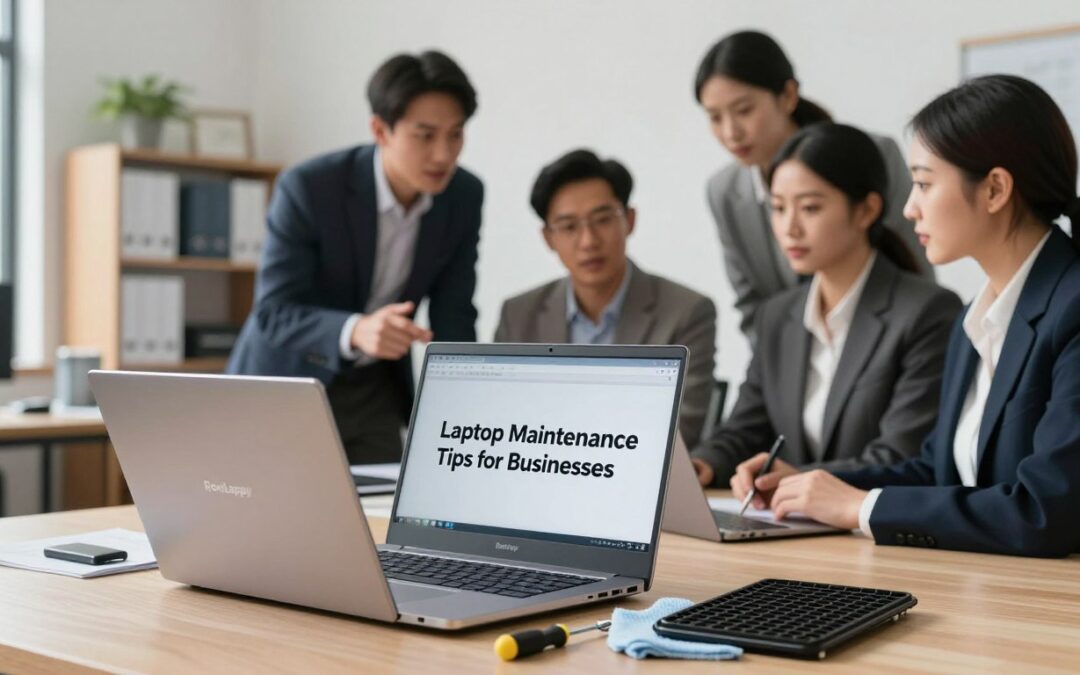
Did you know that poor device upkeep can slash a computer’s total lifespan by up to fifty percent in high-heat environments? In the bustling markets of India, from Bangalore’s tech hubs to Mumbai’s coast, dust and humidity are constant enemies of your fleet. We at RentLappy understand that reliable technology is the heartbeat of your company. Proper care is not just a daily chore; it is a vital strategy for long-term survival.
Consistent laptop maintenance tips ensure your team stays productive without facing sudden system crashes or battery failures. Following these essential guidelines helps preserve your operational budget and prevents expensive, unexpected repairs. Whether you own your equipment or utilize our rental solutions, we act as your knowledgeable partner in technology management.
Managing laptops in a modern business requires a proactive mindset to avoid costly and frustrating downtime. We have compiled eleven essential practices to protect your hardware investments in any professional environment. These steps help defend against overheating CPUs and glitchy operating systems that often disrupt your primary workflow.
Regular hardware servicing defends against the common technical hurdles that slow down your staff and impact revenue. These simple routines keep your professional operations running smoothly for many years to come. By prioritizing device health, you ensure business continuity and steady growth in a competitive market.
Key Takeaways
- Regular hardware upkeep significantly extends the functional lifespan of professional devices.
- Indian climates require specific protection against extreme heat and heavy dust accumulation.
- Proactive device habits prevent sudden workflow disruptions and critical data loss.
- Consistent cleaning prevents CPU overheating and permanent hardware performance throttling.
- Maintenance routines apply equally to both owned hardware and flexible rental units.
- Reliable technology management is essential for maintaining steady company revenue and continuity.
Why Business Laptop Maintenance Is Critical
We believe that looking after your office hardware is the secret to a smooth and profitable workflow for any growing business. Proper maintenance helps us avoid many avoidable computer problems that slow down our talented teams.
While the average laptop lasts about 3 to 5 years, consistent care can extend this lifespan significantly. This means we don’t have to replace every device as often, which saves us a lot of money in the long run.
Regular upkeep ensures peak performance so our employees can work without any frustrating lags or system crashes. We also save valuable time by preventing sudden hardware failures that halt our daily operations.
Investing in prevention is always cheaper than paying for emergency repairs. By staying proactive, we protect sensitive data and keep our security standards high across the entire office.
- Lower Total Cost: Extending hardware life reduces the frequency of expensive new purchases.
- Better Morale: Staff stay happy when their tools function perfectly every single day.
- Higher Resale Value: Well-kept machines return more value when it is finally time for an upgrade.
| Maintenance Strategy | Financial Impact | Device Performance |
|---|---|---|
| Proactive Care | Predictable and Low | Consistently High |
| Reactive Repairs | High and Sudden | Unreliable |
| No Maintenance | Extreme Replacement Costs | Poor and Lagging |
1. Keep Food and Liquids Away from Your Laptops
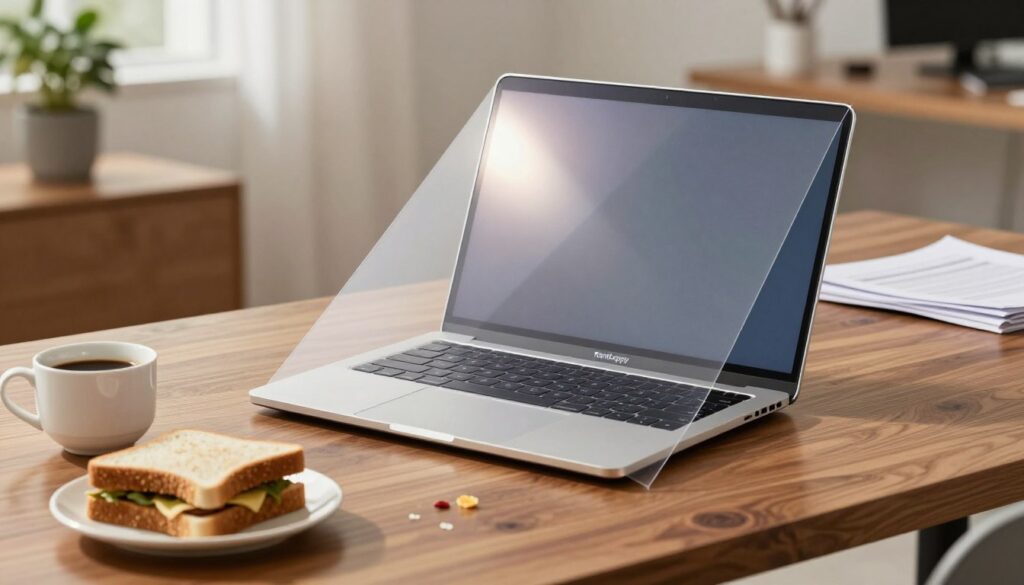
One accidental splash of chai can instantly end the life of your business computer, making distance your best defense. We know that electricity and water are a terrible match for any office setup. Keeping refreshments far from your gear ensures your hardware stays healthy and functional for years.
We recommend creating a clear zone around your workstation to avoid common accidents. Even a small crumb can wedge itself under a key, leading to frustrating hardware issues later. Prevention is always cheaper than paying for emergency repairs or replacing an entire unit.
Understanding the Risks of Spills
Even small spills can cause a short circuit that corrupts your vital business data. These liquids often seep deep into the laptop, leading to permanent damage of internal microelectronic components. Short circuits might destroy the motherboard, making the device completely unusable.
Creating Safe Workspace Policies
We suggest keeping all drinks at least 20 to 30 centimeters away from the keyboard. Using a sturdy stand helps lift the machine off the desk surface, providing a safety barrier against accidental splashes. Our teams often implement designated eating areas separate from desks to protect company property.
| Safety Measure | Benefit | Ease of Use |
|---|---|---|
| Laptop Stand | Elevates device from spills | Very High |
| Distance Rule | Prevents direct contact | High |
| Separate Breakroom | Keeps crumbs away | Medium |
Emergency Response to Liquid Spills
If spills occur, unplug the device immediately and remove the battery if it is external. Turn the machine upside down to prevent fluid from reaching the sensitive motherboard. Use a microfiber cloth to gently dry the exterior before letting it sit in a warm spot for two days.
“A clean workspace is a productive workspace, especially when it protects your most valuable digital tools.”
2. Invest in Quality Protective Cases and Sleeves
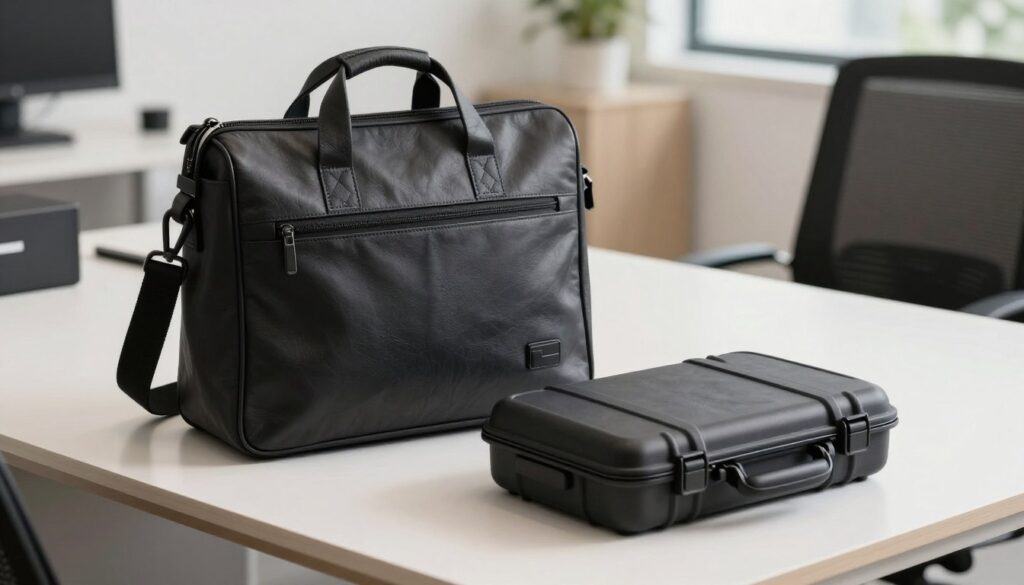
Accidental drops and bumps often lead to permanent damage that makes professional hardware look worn and neglected. We understand that an exposed device remains vulnerable to various risks during every commute or business trip across India.
Using high-quality cases is a small upfront investment that prevents very expensive repairs later. Standardizing these accessories across your company creates a strong culture of care and simplifies the procurement process for your IT department.
Types of Laptop Protection Available
We see four main ways to safeguard your hardware. Skins provide basic scratch protection for the outer shell, while hardshell snap-on covers offer a layer of armor against light impacts.
Sleeves are soft pouches made of nylon or neoprene for lightweight transport. For maximum safety, messenger bags offer the most padding and extra space for chargers and peripherals.
Hardshell Covers vs. Padded Sleeves
Hardshell polycarbonate covers stay on the laptops even during use. They allow easy access to ports while shielding the chassis from unsightly dents and scrapes.
In contrast, padded sleeves are designed specifically for safe transport between different office locations. They provide much thicker cushioning but employees must remove them before they can start working.
Choosing Protection for Your Team
We recommend evaluating your team’s work patterns before buying new gear. Field technicians might need heavy-duty protection, while desk-based staff may only need a simple sleeve for their daily commute.
Always choose brands that specialize in computer products rather than generic fashion options. High-quality padding is essential to absorb the shock of a sudden fall or a slip in the office.
3. Clean Your Devices with Proper Tools and Techniques
A professional laptop cleaning kit featuring a soft microfiber cloth, a bottle of 75% isopropyl alcohol, a small brush, and a can of compressed air arranged on a clean office desk in a modern Indian workspace.
Keeping your team’s hardware in top shape requires more than just a quick wipe. We must perform routine cleaning to protect our valuable investments from grime and internal damage.
Focusing on the main touchpoints ensures that devices stay hygienic and functional for years. Regular maintenance also helps maintain a professional appearance for client-facing employees.
Essential Cleaning Supplies for Offices
Every office should stock a professional laptop cleaning kit to ensure hardware safety. We recommend using a soft microfiber cloth and 75% rubbing alcohol for effective cleaning and disinfection.
Avoid using household soaps or paper towels, as they can leave scratches. Instead, use soft brushes and cotton swabs to remove stubborn dust without damaging sensitive internal parts.
How to Clean Keyboards Safely
First, we power off the machine and unplug all power accessories. Tilt the device upside down to let loose debris fall out of the keyboard naturally.
Spray short bursts of air between the keys to clear hidden particles and crumbs. Finish by wiping the surface with a damp cloth to remove oils and stains.
Screen and Touchpad Maintenance
Use a dry microfiber to gently wipe away fingerprints and smudges from the screen. If spots persist, lightly dampen your cloth with a small amount of alcohol.
Never pour any liquid directly onto the laptop body. Moisture can seep into the delicate electronics and cause permanent shorts or display flickering.
Cleaning Vents and Exhaust Fans
Keeping vents clear of dust is vital for preventing overheating during heavy workloads. We use small brushes to sweep away buildup from the exhaust fan area gently.
This simple cleaning step keeps the laptop running cool and quiet. Regular monthly deep cleans will significantly extend the life of your internal components.
4. Optimize Battery Health and Charging Practices
Even the most impressive laptop battery life will start to fade if we do not follow proper care routines. We want our devices to remain productive for as long as possible to avoid unnecessary replacement costs. By adjusting a few simple settings, we can ensure our hardware stays reliable.
Understanding Modern Battery Technology
Most business devices today rely on lithium-ion cells. These components have a limited number of cycles before they lose their ability to hold a charge. We must understand how these cycles work to maximize our investment over time.
Best Charging Habits for Longevity
We should keep our computers plugged in while working at our desks. Modern systems have built-in protection that stops the flow of power once the battery is full. Contrary to popular belief, overcharging is no longer a major issue for modern hardware.
We recommend using charging modes that cap the battery at 80% for staff who stay at their desks. This setting is great for desk-based use because it reduces chemical stress on the cells. Full charging is only necessary when we are planning to work while traveling.
Avoiding Battery Depletion
We must never let our devices drop to 0% charge. Letting a battery drain completely is proven to cause permanent damage to its internal structure. We should make it a rule to plug in the power cord before levels get too low.
Standardizing these habits across our company ensures that every device lasts longer. Establishing clear company policies helps us maintain a high standard of care for all our business tools. Small changes in how we handle our energy levels lead to better performance for everyone.
| Usage Scenario | Recommended Practice | Primary Benefit |
|---|---|---|
| Desk-Based Work | Enable 80% charge limit | Extends total cell lifespan |
| Mobile or Travel | Charge to 100% capacity | Maximizes unplugged runtime |
| Daily Office Use | Keep plugged in at desk | Prevents unnecessary cycles |
| Low Energy Alert | Plug in at 20% level | Avoids deep discharge damage |
5. Ensure Proper Ventilation to Prevent Overheating
We often forget that internal temperature management is the silent guardian of our office hardware’s health. As we use our devices, the internal components generate significant heat during intense business tasks. Maintaining a cool environment ensures our team stays productive without unexpected system shutdowns or hardware lag.
How Laptop Cooling Systems Work
Most systems use a combination of internal heat sinks and small fans to push hot air out of the chassis. This vital process depends entirely on the vents staying clear and unobstructed throughout the workday. When these pathways remain open, the device can regulate its own temperature effectively.
Avoiding Blocked Airflow
If you accidentally block the airflow, the temperature inside the laptop rises to dangerous levels very quickly. This physical restriction often leads to overheating, which causes the processor to slow down to protect itself. In the worst cases, consistent high temperatures can lead to permanent hardware failure or data loss.
Using Laptops on Proper Surfaces
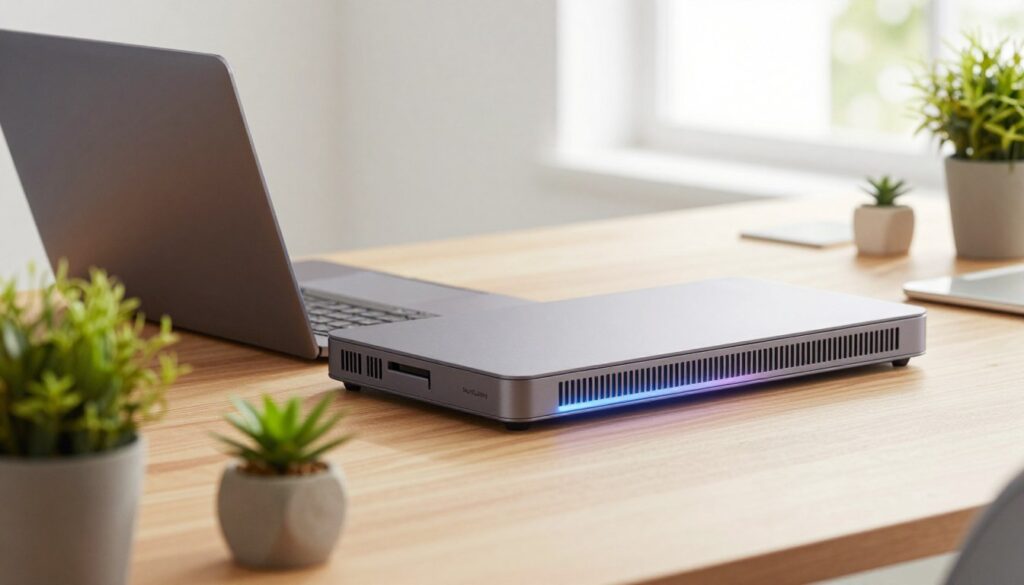
We recommend always using hard, flat surfaces like a wooden desk, a conference table, or a dedicated metal stand. Placing a device on a pillow, carpet, or a bed traps the heat and prevents the necessary airflow from reaching the intake fans. Using a cooling pad is a great investment for employees who prefer working from a couch or flexible workspace.
If our team members work from home in India, they should also avoid dusty environments near open windows. Over time, dust can clog the internal cooling system and trigger overheating much faster than normal office conditions. We should remind everyone to turn their devices completely off before placing them into padded bags or sleeves.
| Surface Type | Cooling Impact | Recommendation |
|---|---|---|
| Wooden Desk | Excellent | Highly Recommended |
| Laptop Stand | Superior | Best for Long Hours |
| Pillow or Bed | Critical Risk | Avoid Completely |
| Laptop Sleeve | Zero Airflow | Power Off Before Use |
6. Keep Operating Systems and Software Updated
We believe that maintaining your digital health is just as important as keeping your hardware physically clean. Keeping your operating system up to date is one of the easiest ways to keep your business running smoothly. This simple habit ensures your devices stay at the cutting-edge of performance power.
Windows 10 and 11 help us stay in tune with once-a-day automated checks. These scans occur in the background and notify us if important patches are ready for installation. Making time for these small tasks prevents bigger headaches down the road.
Security Benefits of Regular Updates
Regular updates act as a primary shield for your business data. They provide critical patches that fix “holes” or vulnerabilities in your code. Hackers often target outdated security layers to gain access to sensitive office files.
By staying current, we protect our team from evolving cyber threats. An updated device is much harder to breach than one running old code. We recommend viewing these patches as essential armor for your digital workspace.
Performance Improvements Through Updates
Beyond safety, a fresh installation can boost PC performance significantly. Developers constantly release code that fixes bugs and speeds up background processes. This ensures your software remains compatible with the newest hardware and accessories.
Old apps often run slowly and cause annoying compatibility issues. These glitches can hinder your daily workflow and lead to system crashes. We find that a fully patched machine feels faster and more responsive during a busy workday.
Setting Up Automatic Update Policies
To take full advantage of current software, we suggest enabling automatic settings on every laptop. You can do this by navigating to Settings and then Update & Security. From there, select Windows system settings to “Check for updates” and turn on automatic downloads.
To keep your apps current, visit the Microsoft Store and select the account menu. Under Settings, set “Update apps automatically” to the “On” position. This removes the manual effort from your maintenance routine.
| Task Type | Location | Action |
|---|---|---|
| OS Patches | Windows Settings | Check for updates |
| App Refresh | Microsoft Store | Enable Auto-Update |
| Security Scan | Security Center | Verify Protection |
Some patches take longer than others to finish. We recommend scheduling these sessions during your lunch break or before you head home for the day. This way, your work stays uninterrupted while your machine gets the care it needs. Staying proactive is the best way to avoid sudden downtime.
“Maintaining current software versions is the most cost-effective way to prevent enterprise-level data breaches.”
7. Remove Unused Programs and Temporary Files
We must realize that useless programs and old junk files likely take up more space on our devices than we imagine. Over time, every laptop in the office collects digital debris that hides in start menus or download folders. These items can quickly become performance hogs if we let them pile up month after month.
Identifying Resource-Hogging Applications
We recommend looking for software that runs in the background without providing any real value to your team. These resource-hogging apps drain memory and processing power, making everyday tasks feel much slower. We should encourage employees to review their installed software and remove anything they no longer use for their daily work.
Running Disk Cleanup Utilities
We can use built-in tools to find and delete hidden junk that accumulates during normal operation. Using a disk cleanup utility helps us remove temporary files and system trash in just a few clicks. This simple habit keeps the system lean and prevents the hard drive from reaching its limit too early.
Managing Startup Programs
Many apps are set to launch automatically when you turn on your computer, which drastically slows down boot times. We can manage this by opening the Task Manager (Alt+Ctrl+Del) and clicking on the Startup tab. By disabling unnecessary programs, we ensure that only essential tools open when we start our workday.
Clearing Cache and Temporary Files
Regularly clearing temporary files and browser caches is a great way of freeing up storage for more important documents. We find that a clean digital workspace leads to a much better performance for the entire team. Setting a monthly schedule for this “digital purge” will keep your business hardware running efficiently for years.
| Maintenance Task | Business Benefit | Recommended Frequency |
|---|---|---|
| Uninstall Unused Software | Recovers disk space | Every Quarter |
| Empty Recycle Bin | Quickly clears clutter | Weekly |
| Manage Startup Apps | Faster boot speeds | Monthly |
| Run Disk Cleanup | Removes system junk | Monthly |
8. Implement Regular Antivirus Scanning
Your business laptops face constant threats from the web, making regular antivirus checks a non-negotiable task. We often see how malware attacks sneak up at any moment, so using savvy business antivirus software India helps us prevent massive damage. High-quality tools are essential because they provide a layer of protection that free versions simply cannot match.
Protecting Company Data from Malware
A malicious virus can do much more than just slow down a professional laptop. It can expose your most sensitive data to third-party cybercriminals or hackers. Malware infections often lead to unauthorized access to your private files and critical security settings.
We must prioritize software that scans all downloads in real-time. This proactive approach keeps our confidential information safe from prying eyes. Investing in a reputable paid solution ensures we stay ahead of evolving digital threats.
Scheduling Automated Security Scans
We recommend setting up a weekly automated virus scan to keep every system clear of hidden threats. If your employees download programs or files frequently, running these scans twice a week is even better for your laptop fleet. It is always better to err on the side of safety when malware is a risk.
Automation takes the guesswork out of maintenance for your busy team. These scheduled checks catch malicious software before it causes serious performance issues. We find that consistent scanning helps maintain a smooth workflow across the entire office.
Recognizing Signs of Infection
Keep an eye out for unusual signs like slow browser speeds or frequent system crashes. You might notice strange pop-ups or your browser redirecting to doubtful websites without your permission. Addressing these signs early helps us keep our company data and overall security intact.
Always avoid clicking on uncertain links, especially from non-reputable companies. We should only download applications directly from the developer’s website or the official Microsoft Store. Strong digital habits are our first line of defense against cyberattacks.
9. Handle Laptops with Care During Transport
When it comes to moving your office gear, a little bit of caution goes a long way in preventing issues. We understand that business often happens on the go, but moving your hardware requires a soft touch. When we transport our devices, we must treat them as delicate tools to ensure they remain functional for years.
Proper Carrying Techniques
Always hold your laptop by the base, ideally using both hands for maximum stability. We should never lift the device by the display alone, as this puts immense stress on the hinges. If you lift by the display, the small parts connecting it to the base can break very quickly.
Lifting by the screen can also lead to internal cracks that are often too expensive to fix. We need to be mindful of how much pressure we apply to the outer casing during movement. A gentle grip is always better than a firm squeeze when walking between meeting rooms.
What to Do Before Packing Your Laptop
Before you close the lid, always check the keyboard for small items like pens, mobiles, or earphones. Closing the screen on a stray object like a pencil can cause immediate and permanent damage. We recommend clearing the entire surface and powering down completely to keep the internal components safe.
Avoid placing any items directly on the keyboard before shutting the monitor. We must ensure the area is totally clear to prevent keys from being pressed too hard. Taking these few seconds can save us from a very frustrating hardware failure later.
Avoiding Common Physical Damage
Avoid placing heavy books or materials on top of your device, as the weight can crush the LCD against the keys. We should also keep our gear away from extreme heat or cold, such as car trunks or nearby kitchen ovens. Using a high-quality padded bag provides the extra care needed to shield it from bumps during transport.
Finally, we should keep our workstations away from appliances that generate strong magnetic fields. Devices like large speakers or old televisions can interfere with sensitive internal hardware. By following these simple rules, we protect our company assets from avoidable wear and tear.
10. Organize Cables and Manage Workspace Setup
We often overlook the snake-like mess of wires hiding behind our office desks. Taking time to declutter and organize the mass of wires is a great first step for everyone. A tidy space helps us focus on our tasks without unnecessary stress.
Proper routing allows for easy movement between different desks. We feel more productive when our environment looks clean and professional. Let’s look at some simple tools that make this task easier for us.
Cable Management Solutions
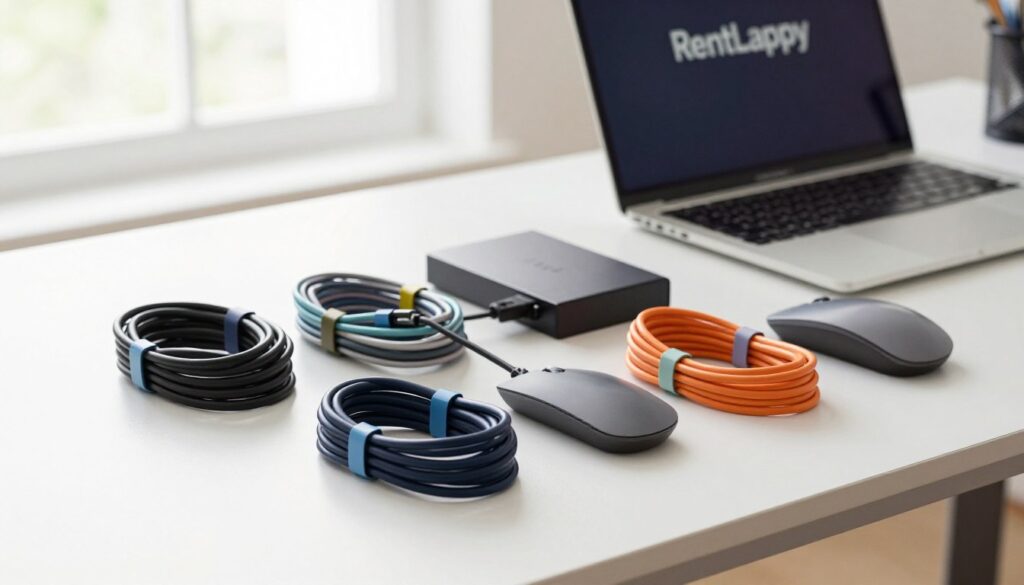
We recommend using rotating power strips to handle different charger sizes. Traditional strips often block ports, but rotating ones give us freedom to modify positions. This simple organization step makes a huge difference in daily efficiency.
Color-coding your cables with reds, blues, or yellows is another smart move. It helps our team identify which wire belongs to which device instantly. This saves time during troubleshooting or when moving to a different work station.
Preventing Tripping Hazards
We must keep all wires away from footpaths to ensure office safety. Tripping over a loose wire could topple a laptop in an instant. Such a fall causes more damage than years of normal wear and tear ever would.
Using Cable Organizers and Clips
Small clips are perfect for attaching wires to desks, walls, or floors. These tools hold various sizes and keep everything in its proper place. We find that adhesive organizer panels are also great for managing multiple indistinguishable wires at once.
Using these tools ensures that our cables don’t fall behind heavy furniture. This proactive organization extends the life of our power adapters and peripherals. It creates a professional environment that we can all be proud of.
| Solution | Primary Feature | Workplace Benefit |
|---|---|---|
| Rotating Power Strips | Adjustable outlet positions | Fits bulky laptop chargers |
| Color-Coded Labels | Bright visual identification | Faster device troubleshooting |
| Cable Clips and Panels | Desktop or wall mounting | Prevents hazardous tripping |
| Weighted Organizers | Heavy base for stability | Keeps cables from slipping |
11. Essential Laptop Maintenance Tips for Businesses
We believe that a structured routine is the secret to getting the most out of your company’s technology. Regular laptop maintenance ensures your team stays productive and avoids costly repairs. By developing simple habits, we can extend the life of every laptop in the office.
Taking measures to ensure devices run longer saves money over the long term. We do not have to replace equipment as often when we treat it well. Our care for equipment ultimately helps the company grow without unnecessary tech expenses.
Daily Maintenance Checklist
A daily checklist keeps small problems from growing into major failures. We recommend shutting down devices properly at the end of every work day. This time allows the system to reset and prevents hardware fatigue from constant use.
Wipe down the outer surfaces daily to remove dust and fingerprint oils. We suggest these simple habits to keep laptop devices clean and looking professional. Make sure you check for keyboard debris and ensure the vents stay clear during operation.
These small tips keep the cooling system efficient throughout the day. We also recommend checking for any blocked airflow before starting a heavy task. Maintaining a clean workspace is the first step in successful laptop maintenance.
Weekly and Monthly Tasks
Once a week, we should run disk cleanup utilities to boost overall system performance. It is also vital to check for software updates and perform antivirus scans. These maintenance tips protect your sensitive company data from external threats.
Every month, we suggest a deeper cleaning of the vents to remove stubborn dust. Review your installed programs and delete anything that the team no longer uses. This care keeps the storage space available for your most important business projects.
We also advise reviewing battery health and storage availability during the monthly review. We suggest these tips to help you manage your laptop fleet more effectively. This proactive approach prevents unexpected downtime for your employees.
Quarterly Deep Maintenance
Every three months, we advise performing a comprehensive system health check on every laptop. This is the perfect time to run disk defragmentation for better performance. We also suggest deleting old documents, images, or videos to free up space.
If you are worried about losing important data, invest in a cloud service or an external hard drive. Always be careful when downloading software from the web to avoid unwanted installers. These installers often add “free” software that can slow down your laptop.
Following a checklist helps you keep laptop systems healthy for several years. We suggest appointing an IT coordinator to ensure everyone follows these maintenance tips consistently. This helps us keep laptop assets running like they are brand new.
Regular maintenance is important for business continuity and long-term hardware reliability.
| Frequency | Maintenance Task | Key Result |
|---|---|---|
| Daily | Proper Shutdown | System Reset |
| Weekly | Disk Cleanup | Storage Optimization |
| Monthly | Vent Cleaning | Cooler Hardware |
| Quarterly | Health Check | Error Removal |
RentLappy: Your Trusted Laptop Rental Partner in India
At RentLappy, we provide top-tier technology solutions to help your businesses thrive across India. We are a trusted provider of laptops and IT equipment based in New Delhi. Our team offers affordable, high-quality rental services for short or long-term needs.
We specialize in desktops, servers, and networking tools for startups and large corporations alike. Whether you need a single device or a bulk order for your entire team, we ensure fast delivery. We take pride in our user-centric approach in the tech market today.
By choosing us, you get the flexibility to scale your technology without the high cost of ownership. Each device we offer receives the same high-level maintenance care discussed in our guides. This ensures your equipment remains reliable for many years of productive work.
Our commitment to excellence has made us a leading choice for businesses seeking a dependable rental partner today. We provide top-brand devices backed by exceptional customer support and nationwide service. We look forward to helping you reach your goals with the right tools.
Contact Information:
Address: D-97, Okhla Phase 1, Okhla Industrial Estate, New Delhi – 110020
Phone: +91-60003 70013
Email: sales@rentlappy.com
Conclusion
Implementing a consistent laptop maintenance routine is the best way to protect your company’s valuable hardware investments. By following these essential steps, we ensure every laptop in the fleet delivers peak performance. These simple habits prevent common problems and issues like a sticky keyboard or a dusty screen. Regular software updates and clearing old files keep the system fast while maximizing storage space for your team.
Proactive maintenance protects internal components and the hard drive from unexpected hardware problems. We must prioritize battery health and charging habits to extend laptop life significantly. Using a soft cloth on the keyboard, screen, and other parts keeps the laptop looking professional and ready for work. Managing files on a clean drive helps maintain enough storage and storage space for critical company data.
Reliable power management prevents a number of technical issues that can disrupt productivity. Keeping the hard drive and the main drive clear of clutter saves space for important data. Consistent maintenance ensures your keyboard and other components stay functional for years. Our software needs a regular update to function properly and stay secure.
RentLappy provides a number of expert laptop rental solutions in India with the power and software support your laptop needs to thrive. We give your business the power and drive to scale with confidence through superior technology care.