
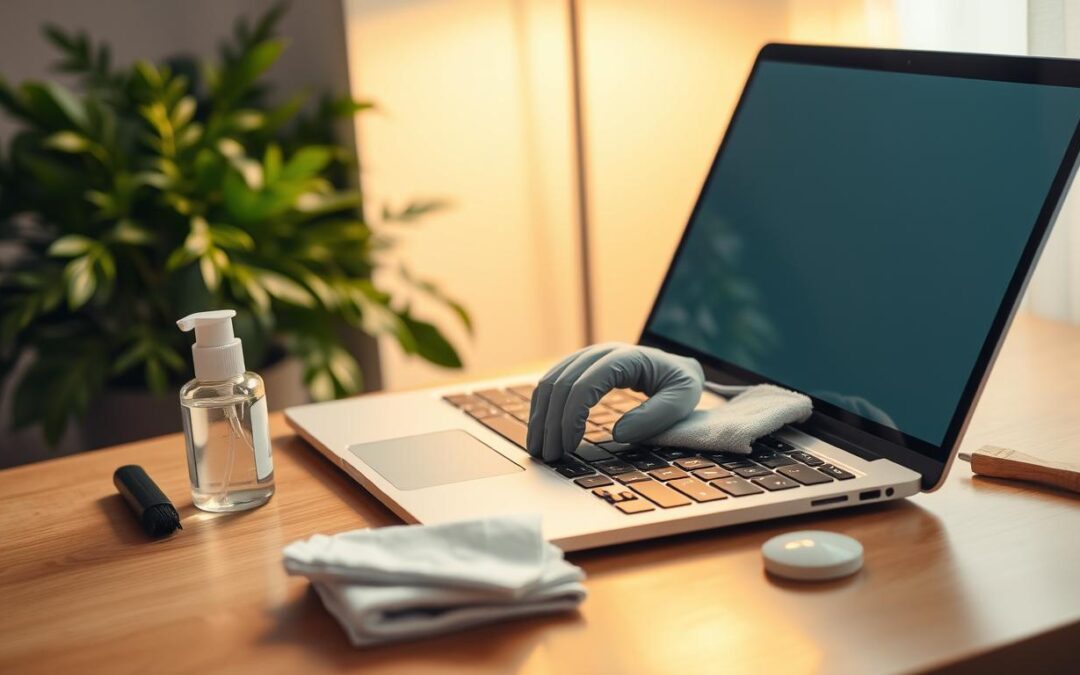
Could a quick wipe leave lasting marks on your device? Safe care starts before a cloth ever touches it, especially when delicate parts are involved.
This friendly guide shares simple steps for laptop cleaning, from powering off the computer to choosing soft, dry supplies. It also explains why you should keep liquid away from openings and use a light touch. A gentle routine can help you clean laptop screen surfaces without harming the LCD.
For everyday dust, fingerprints, or residue, external care every three to six months is a useful habit. In dusty settings, you may need to do it more often. Internal service is usually an annual task, or a step worth considering when performance issues arise.
RentLappy works to make technology more accessible, affordable, and flexible for startups, corporate teams, freelancers, and educational institutions across India. Whether you use a device for work or study, careful upkeep can support hygiene, performance, and longer device life. Read on for practical advice that helps reduce damage risks without special tools.
Key Takeaways
- Power off the device before care begins.
- Use soft, simple supplies with a light touch.
- Keep liquids away from ports or other openings.
- Plan external care every three to six months.
- Consider internal service each year, or when performance drops.
- Treat delicate LCD surfaces with extra care.
How to clean laptop keyboard and screen safely
Gentle cleaning protects more than appearance. A clean laptop can stay comfortable for daily work when you use light pressure and follow a steady routine.
Why gentle care matters
Dust can block vents, trap heat, and slow performance. Oils, bacteria, and germs may also collect on keys and touchpads. Careful cleaning helps support hygiene while reducing the risk of damage to delicate surfaces.
“A light touch helps protect both comfort and device life.”
Use this guide for exterior care. For most users, laptop cleaning every three to six months is a useful starting point. Homes or offices with frequent dust may need more attention. Internal service is usually best once a year, or when performance problems appear.
- Clear dust from outer openings so airflow stays steady.
- Wipe the keyboard screen area gently; avoid pressure on fragile parts.
- Choose a schedule that fits your environment.
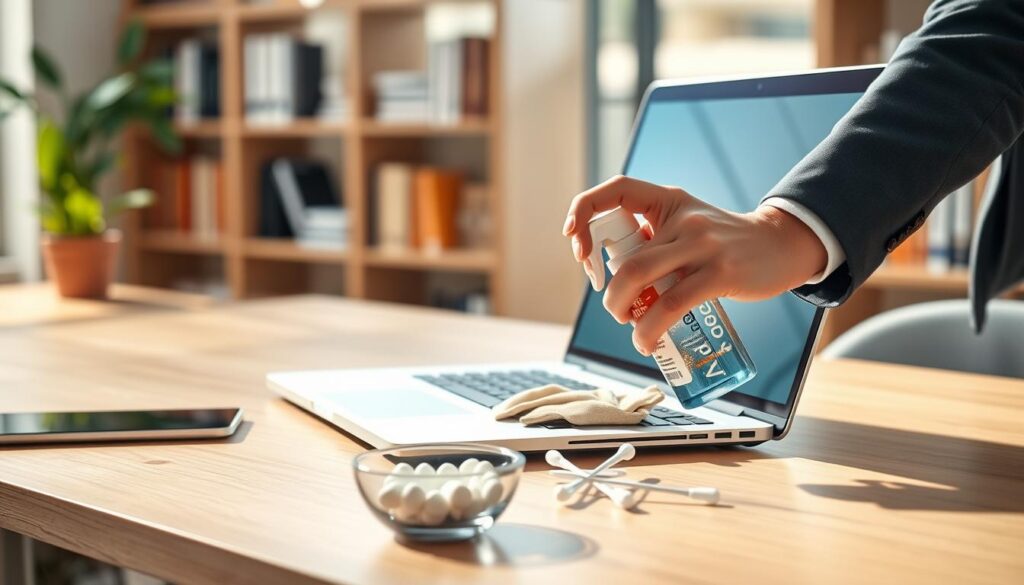
Regular care supports hygiene, airflow, and appearance. Use this simple schedule as a starting point:
| Care area | Suggested timing | Main benefit |
|---|---|---|
| Exterior surfaces | Every 3–6 months | Less residue and dust |
| Dusty settings | More often | Clearer airflow |
| Internal service | Yearly, or if issues arise | Support steady performance |
Gather the right supplies before you clean a laptop
A little preparation keeps each product suited for its surface. Set supplies on a dry desk, then separate display care from key care. Simple cleaning starts with products labeled for their intended use.
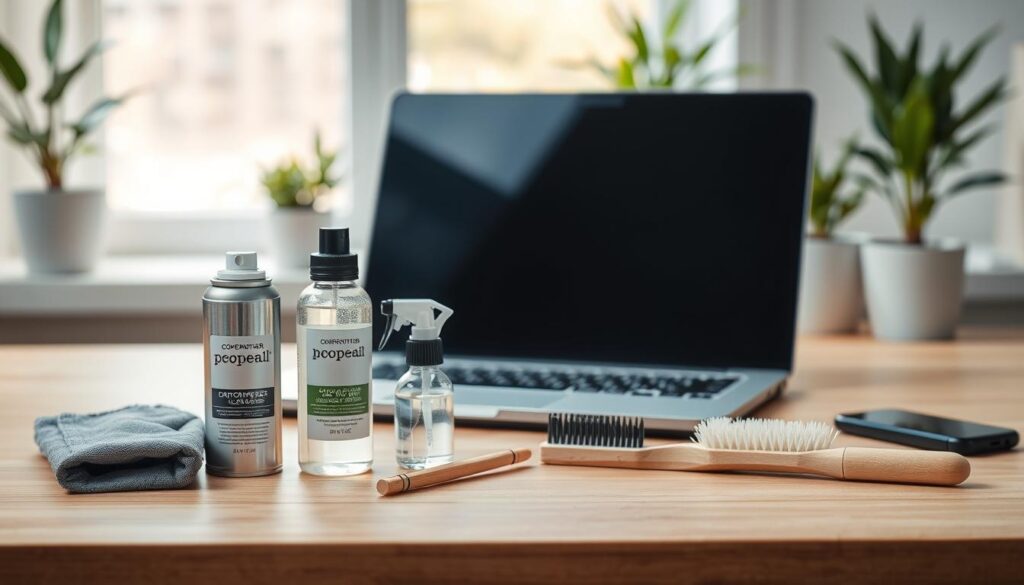
Choose a microfiber cloth and suitable screen cleaner
For the display, use a fresh microfiber cloth with distilled water or a screen-safe solution. Dampen it slightly; never spray liquid onto surfaces. A dedicated cleaner should list display use. This helps lift smudges without pushing moisture toward vents.
Use compressed air and isopropyl alcohol carefully
For the keyboard, hold the computer at a 75-degree angle. Keep the can upright; use short bursts of compressed air to dislodge dust, crumbs, and debris between keys. A soft brush lifts loose particles from easy-to-reach areas.
For key marks, apply 70% or higher isopropyl alcohol sparingly onto a cloth, not directly. Keep display products separate. Never soak a tool; excess liquid can enter openings.
| Area | Suitable supply | Use note |
|---|---|---|
| Display | Distilled water or screen cleaner | Apply sparingly to cloth |
| Keys | 70% or higher alcohol | Use a small amount |
| Gaps between keys | Compressed air or soft brush | Use brief, gentle passes |
Turn off and unplug your laptop before cleaning
Before any care begins, shut down the computer fully. Save open work, select Shut Down, then wait until the indicator lights go dark. This limits electrical risk plus accidental input while you handle nearby surfaces.
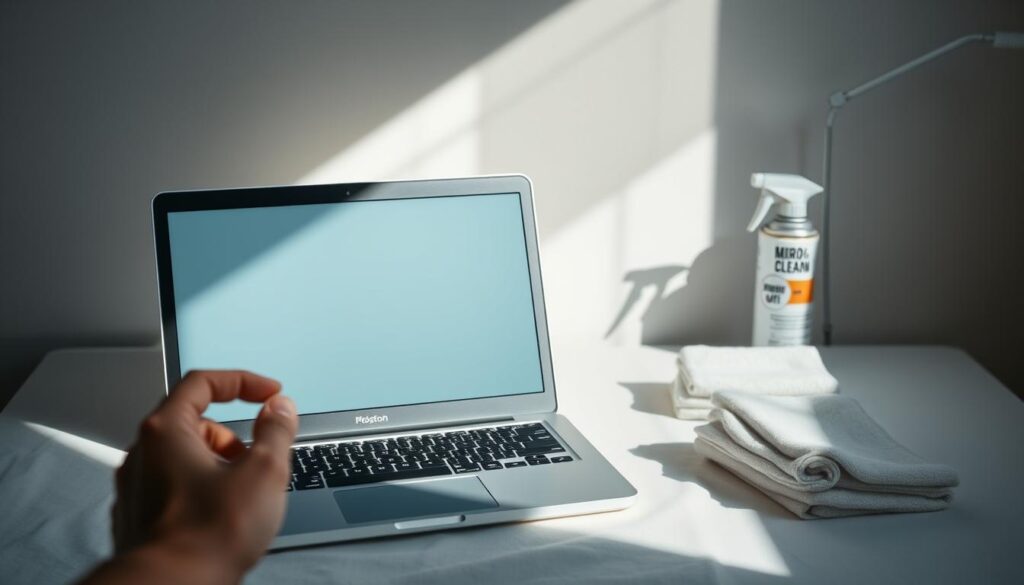
Disconnect accessories and let the device cool
Remove the charger, USB drives, headphones, mouse, plus other connected accessories. Give the laptop a few minutes to cool, especially after a long work session. A cool, powered-off unit feels easier to hold steady near the touchpad, ports, keys, or display.
Make sure the power is off before surface care. Keep cloths or other supplies close by, but away from openings. This simple pause helps prevent stray input or moisture from reaching sensitive areas.
- Shut down fully; do not rely on sleep mode.
- Unplug the charger plus connected accessories.
- Wait for the unit to cool before moving ahead.
Once the area is clear, proceed with a light touch. Keep cables aside, then begin only when the computer is fully powered down.
Clean the laptop screen without leaving moisture behind
Display care works best in small steps. Begin with a dry microfiber cloth; a light pass can lift dust before any solution is needed. This helps prevent grit from dragging across the LCD.
Gently wipe dust and smudges with a microfiber cloth
Use a fresh cloth, then gently wipe in soft circles with little pressure. For stubborn marks, dampen one small part with distilled water or a screen-safe solution. Keep the cloth barely damp, never wet.
Apply cleaning solution to the cloth, never directly
Spraying liquid onto the display may let it seep into internal parts. Instead, apply cleaner to the cloth, then wipe the LCD with care. Use a dry part after each pass to remove excess moisture.
- Check edges, corners, plus other areas for damp spots.
- Let the surface dry before regular use.
- Keep moisture away from ports and seams.
Remove dust and debris from the laptop keyboard
With the computer off and unplugged, you can clear crumbs before wiping the keys. These gentle steps help clean laptop surfaces without sending debris into vents or speakers.
Use short bursts of compressed air between the keys
Tilt the laptop at a 75-degree angle. Keep the compressed-air can upright, then aim brief bursts between the keys. Repeat as needed; avoid long blasts near vents or other openings. A soft brush can lift loose dust that remains.
Wipe keys with a lightly dampened cloth
Lightly dampen a microfiber cloth with 70% or higher isopropyl alcohol. Wipe each key, then use a dry part of the cloth. Use very little liquid so excess moisture cannot seep below the keycaps. Keep water and screen cleaner away from this area.
Clean sticky areas without letting liquid reach the speakers
For sticky spots, moisten a cotton swab with a small amount of isopropyl alcohol. Trace the key edges; never pry them off. Make sure liquid does not run toward the speakers. Let the surface dry fully before reconnecting power or accessories.
A careful touch helps protect your device during routine cleaning.
Wipe the laptop body, touchpad, and frequently touched areas
Start with the device powered off, unplugged, cool to the touch. Use a microfiber cloth lightly dampened with mild soap solution. Gently wipe the outer casing, palm rest, plus touchpad. A clean laptop exterior needs only a little moisture; the cloth should never drip. Focus on fingerprints, skin oils, or visible marks, especially after shared use in an Indian office or classroom.
- Pre-moistened device cleaning wipes also suit the body. Follow label guidance, then keep wipes clear of ports, speakers, seams, or other openings.
- Give extra attention to the touchpad plus palm rest, where daily contact can leave oil residue.
- After each pass, turn the cloth to a dry part. Blot away moisture rather than rubbing harder.
- Check edges for damp patches; avoid leaving wet spots on exterior surfaces.
- Wait until the device feels fully dry before reconnecting power or accessories. Keep this routine focused on outer parts, not internal components.
A quick check before use helps keep moisture away from delicate openings.
Avoid these common laptop cleaning mistakes
Small mistakes can harm delicate parts or put your files at risk. Before any laptop cleaning, choose gentle supplies and follow the device manual.
Keep excess moisture, harsh chemicals, and abrasive tools away
Avoid using harsh chemicals or rough tools. Never spray liquid on the screen; it may seep inside. Use one microfiber cloth with a little screen cleaner. Avoid using a wet cloth near the keyboard, keys, speakers, ports, or vents. Keep water off the LCD and other surfaces. A soft brush or short bursts of compressed air can lift dust near vents. Do not force a brush into gaps. If you spill liquid, power off, unplug laptop, remove its battery if possible, then let it air-dry for at least 48 hours.
Do not open the device or work inside it without guidance
Opening the inside laptop may void its warranty. Check the manual first; seek a trained technician if unsure. Use compressed air only as directed, and do not reach inside laptop near fans.
For hard drive care, back up files first. Disk Cleanup removes unneeded data; defragmentation suits an HDD, not an SSD. These steps help you clean computer files without risking damage. Use alcohol only on a cloth, never as a general-purpose tool.
Keep rental laptops in good condition with RentLappy
Gentle cleaning helps shared devices stay ready for work, training, or events. RentLappy makes technology access more flexible for organizations across India, with rental plans shaped around business needs.
Explore business technology rentals across India
Choose from laptops, desktops, servers, plus networking equipment. Founded by industry professionals with over 12 years of IT and electronics experience, RentLappy has served more than 5,000 customers. Its reach spans metro cities, tier-2 towns, and tier-3 communities.
- Support for startups, corporates, freelancers, and educational institutions.
- Flexible equipment for corporate events, employee training, remote work, or a growing team.
- Options that help match each computer setup with practical business needs.
Contact the Okhla office
Need rental support? Reach RentLappy at D-97, Okhla Phase 1, Okhla Industrial Estate, New Delhi – 110020. Call +91-60003 70013 or email sales@rentlappy.com. A helpful team can discuss equipment needs for your next project.
Conclusion
Protecting your device starts with a few calm steps. Power it down, unplug accessories, then use gentle tools for each surface. This practical guide can help prevent avoidable wear during routine care.
Begin with a dry microfiber cloth for dust on the screen. For stubborn marks, place a little approved solution on the cloth, never on the display. Use short air bursts between key gaps, then wipe the keys with a barely damp cloth. Keep moisture clear of speakers.
Use a dry part of the cloth to lift leftover moisture. Skip harsh chemicals plus abrasive tools, since delicate parts can scratch or stain. Aim for exterior care every three to six months; in dusty Indian homes or offices, check more often.
With this simple routine, your laptop stays ready for work or study. A light touch supports lasting performance without special gear.