
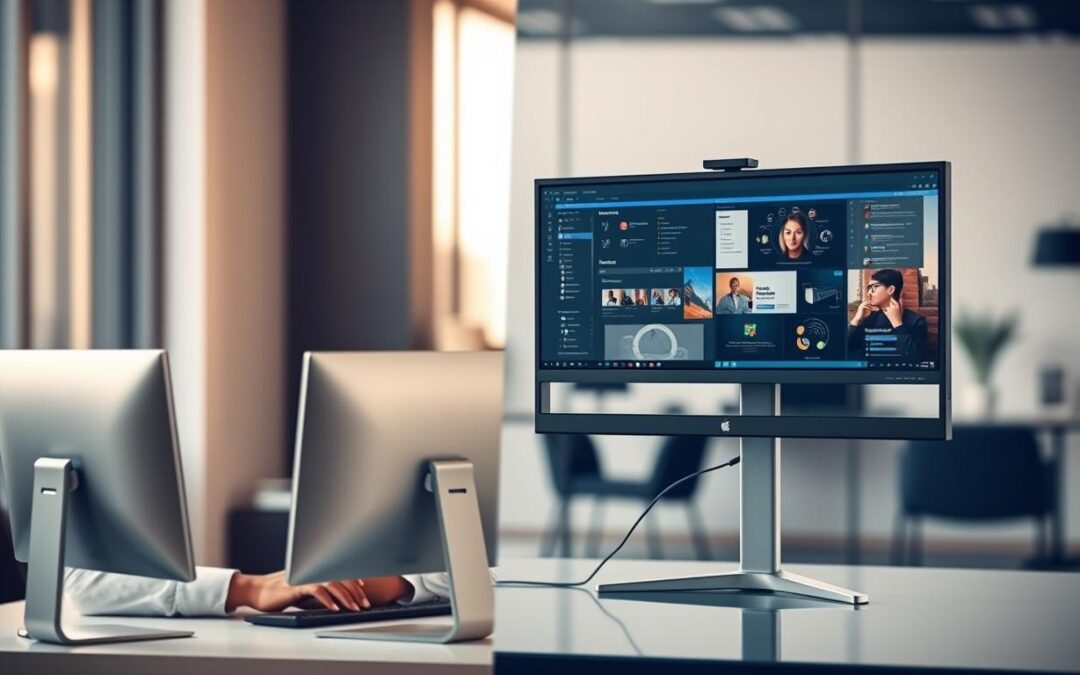
Could adding another display save you time, or would it just add clutter to your desk? The answer depends on the tasks you do, your computer, and the space you have. For many people in India, a compact or shared work area also matters.
Research offers a strong case for extra screen space. Wichita State University found that people using two displays were 18% more efficient on tasks that involved several sources of information. They also switched windows 15% less often.
A University of Utah study found that 98% of participants preferred two displays. Other research reported gains of 44% for text editing and 29% for spreadsheet work when comparing two 20-inch displays with one. These results point to potential gains, not a promise for every user.
So, is more screen real estate right for you? This article weighs the practical trade-offs, including cost, hardware needs, placement, and desk space. You’ll also see when adding a second screen can make daily work feel smoother—and when one display may be enough.
Key Takeaways
- More display space can help when tasks use several sources of information.
- Research reports fewer window switches and faster editing for some tasks.
- Personal preference, computer support, and desk space all matter.
- Good placement can make extended screen use more comfortable.
- Choose the arrangement that fits your everyday work.
What Is a Dual Monitor Setup?
This arrangement connects two displays to one computer. A shared keyboard and mouse control windows across both, so you can move applications from one display to the other. Choose an extended desktop to see different content on each display, rather than the same view twice.
The computer remains the center of your workspace. Multiple displays extend its desktop; they do not replace the machine or create a separate work environment. This can make it easier to keep a document open beside reference information.
Most modern computers, including many laptops and tablets, can support two displays. The exact limit depends on the device, its ports, and its graphics hardware. A dedicated graphics card often has at least two or three display ports, but check its specifications before connecting equipment.
For home offices in India, check available desk space and device compatibility first. These basics can help you choose the right arrangement.
- One computer runs both displays.
- Extended mode lets you move applications between them.
- Device specifications determine display support.
| Part | Role | What to check |
|---|---|---|
| Computer | Runs the desktop and applications | Supported display count |
| Graphics card | Sends video to connected displays | Available ports and capability |
| Keyboard and mouse | Control windows across the workspace | Comfortable reach and placement |
Dual Monitor Setup Benefits for Productivity
A second display can keep key information in view while you focus on a task. For many people in India, this can make document work, training, and team calls feel more organized.
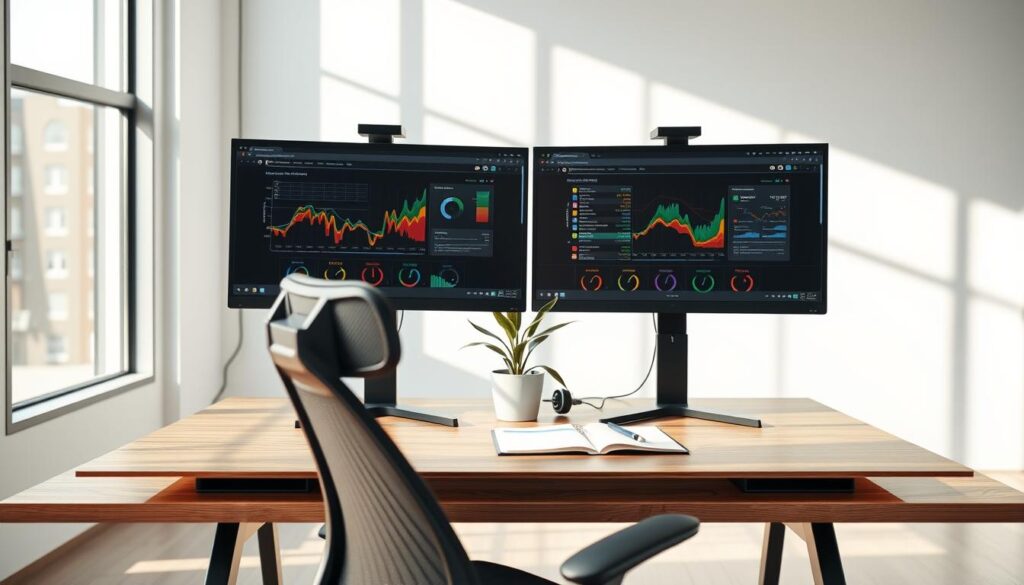
Keep documents and references side by side
Use the primary display for a Microsoft Word report and the secondary screen for a PDF. Comparing files or figures side by side can cut repeated window changes. You can also drag an image from file explorer into Photoshop with less effort.
Keep tasks organized and easy to follow
With dual monitors, instructions can stay open on one display while a learner follows each step in an application on the other. This extra screen real estate can save time and support steady productivity.
Make collaboration clearer
Zoom or Zoho Meeting can keep a participant visible while your work documents remain open. One team used three to five ASUS monitors based on each person’s role. A triple-display webinar also helped host more than 100 small-business owners.
Start with two screens and choose tools that fit your daily work. The right arrangement can make sharing information and completing tasks feel simpler.
How Two Screens Support Remote Work and Gaming
Remote work in India often mixes team calls, shared files, and quick questions. Two well-planned screens can keep that flow visible without covering your main task. This can help you stay focused during a long shift.
Keep calls and chat in view
With dual monitors, keep a video call or chat window on one display and your documents on the other. Zoom and Zoho Meeting let you follow a video meeting while you review notes or reference information. You can check messages without hiding the file you need for primary work.
Give each screen a clear job: one for communication, one for focused tasks.
“Keep the conversation in view, not in the way.”
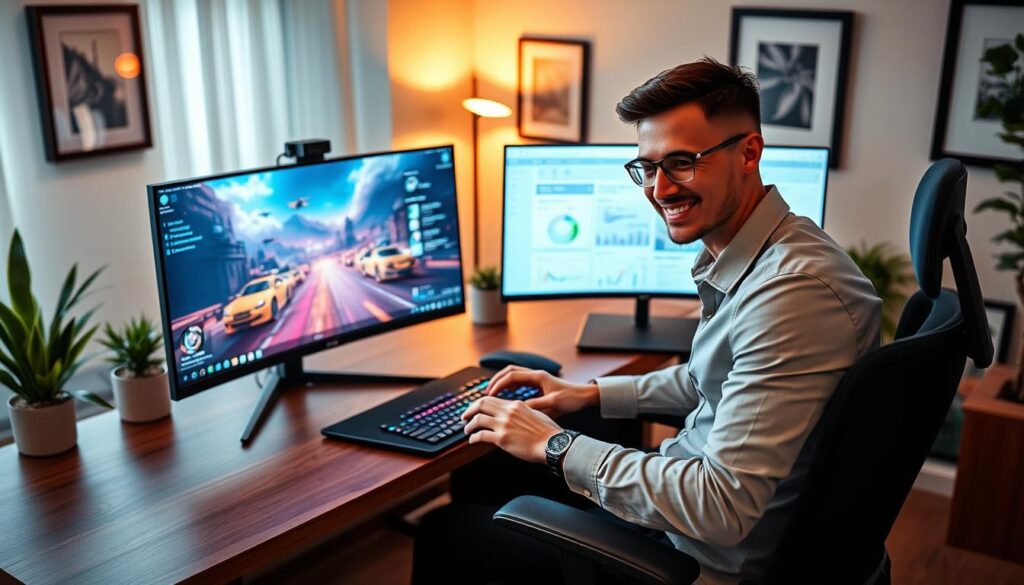
Keep guides and live chat beside your game
For gaming, leave gameplay on the primary screen and place guides, streaming tools, or live chat on a secondary screen. This makes it easier to follow a video guide or respond to viewers without repeatedly covering the game.
The EX2710s is one example in a dual gaming-monitor pairing, described with a 1 ms response time and a 165 Hz refresh rate. Assigning a purpose to each display helps keep applications from competing for attention. The advantage is quick access, not more distractions.
Potential Drawbacks of Using Dual Monitors
More screen area can help, but it may also bring extra cost, clutter, and distractions. A thoughtful monitor setup starts with the limits of your room and computer.
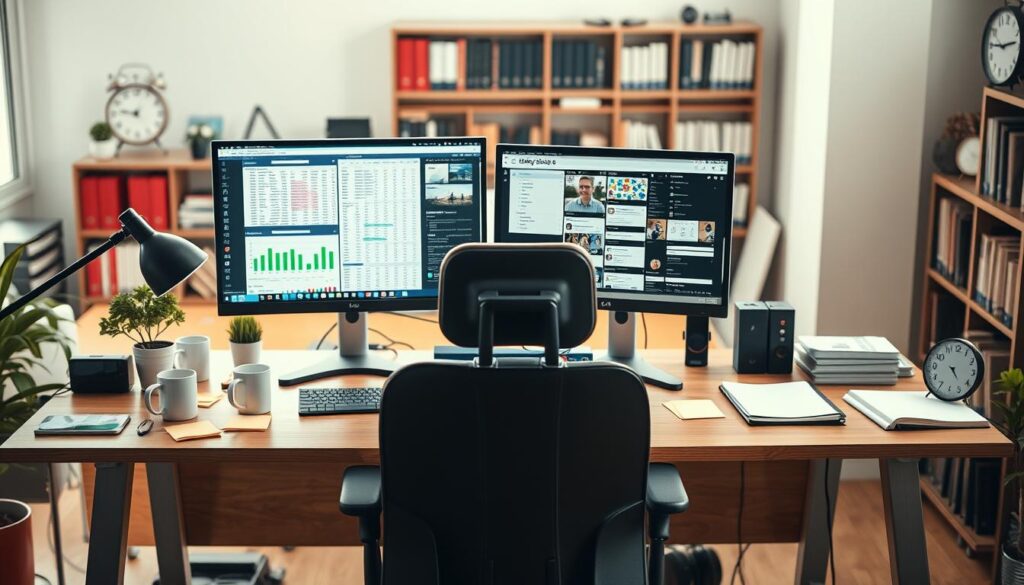
Consider room, cost, and computer resources
A 24-inch primary display paired with 21-inch and 19-inch monitors needs more room than one screen. Measure your desk space before you buy, especially in a compact home office. Leave room for a keyboard, notes, and comfortable movement.
Extra screens and cables add to the cost. Some modern graphics cards have several display ports, but demanding apps and video work also use computer resources. Check whether your machine can handle the load.
Give each display a clear purpose
Social media or sports on an extra screen can pull your attention away from work and reduce productivity. In this case, dual monitors may create more interruptions than value.
“Each screen should earn its place.”
- Assign a clear task to each display.
- Turn off the second display during focused work.
- Recheck desk space before adding more equipment.
With a simple plan, multiple displays can stay useful without taking over your workspace.
What to Check Before Adding a Second Monitor
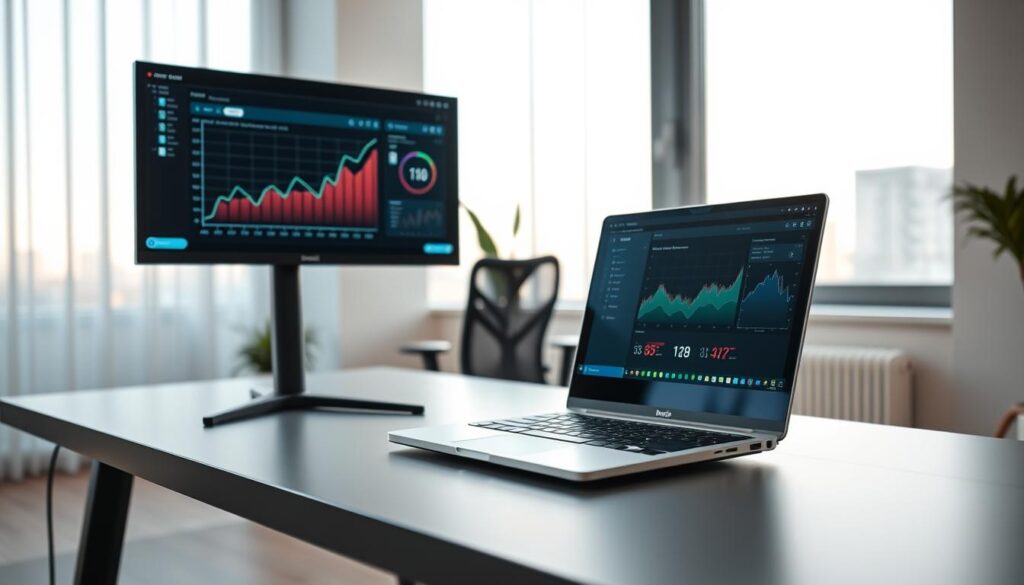
Before buying, confirm that your computer can run both displays and that your desk has enough room. Modern computers often support multiple screens, but ports and graphics specs vary by model.
Check graphics card support, ports, and cables
Check for at least two usable video outputs, such as VGA, DVI, HDMI, USB-C, or DisplayPort. A graphics card with only one video port cannot run two displays without an additional graphics card. Match the cable and connector types; if the inputs differ, you may need an adapter. Check your computer’s specs before you purchase.
Compare size, resolution, and refresh rate
Compare size, resolution, refresh rate, and bezel width with your current display. Similar specs can make a dual monitor setup feel balanced for work and applications.
Measure your desk, too. Two 27-inch displays need about 130–140 cm of width; two 24-inch models need around 115 cm. Leave room for your keyboard and daily items.
Arrange Your Monitor Setup for Comfort
A few small adjustments can make long work sessions feel easier. Good positioning also helps you use extra screen space without twisting or leaning.
Position the primary and secondary screens to suit your work
Place the primary monitor straight ahead if it holds most of your daily tasks. Angle the secondary screen inward by about 20–30 degrees. If both screens get equal use, center them together so your head rests in a neutral position between them.
Keep each display at or just below eye level, about 60–75 cm (24–30 inches) away. An adjustable arm can fine-tune the height and angle while freeing desk space.
Try portrait orientation for long documents or code
A compatible display turned upright can show more lines of code, a long PDF, email, or chat. This extra vertical real estate may reduce scrolling and support productivity. Before choosing this position, check that the stand rotates or the display supports a VESA mount.
| Use | Suggested position | What to check |
|---|---|---|
| One main task | Primary screen centered; other screen angled inward | 20–30-degree angle |
| Equal screen use | Pair centered in front of you | Neutral head position |
| Long text or code | Turn a compatible display upright | Rotating stand or VESA support |
Choose a Flexible Setup with RentLappy in India
Need a monitor setup without a large upfront cost? RentLappy makes technology more accessible and flexible for startups, corporates, freelancers, and educational institutions across India. Its rental options can help teams plan a practical workspace, including a multiple monitor arrangement.
Rent laptops, desktops, servers, and networking equipment
RentLappy provides laptops, desktops, servers, and networking tools suited to business needs. You can choose monitors for an office desk, a training room, or a video event. Founded by IT and electronics professionals with over 12 years of experience, the company has served more than 5,000 customers in metro cities and tier-2 and tier-3 towns.
Explore rental options for startups, businesses, and remote work
Rentals can support a new startup, a corporate event, employee training, or remote work. Choose equipment for the team and the task, then adjust as needs change. This flexible approach helps businesses equip screens and computers without a long-term purchase.
Contact RentLappy at D-97, Okhla Phase 1, Okhla Industrial Estate, New Delhi – 110020. Call +91-60003 70013 or email sales@rentlappy.com to discuss your requirements.
Conclusion
Choosing between one screen and dual monitors depends on your tasks, desk space, and computer ports. Two displays can keep a reference and active work in view at once, but they need room and compatible hardware.
Research offers context, not a guarantee. Wichita State University reported 18% greater efficiency on tasks that used several information sources. At the University of Utah, 98% of participants preferred a dual monitor arrangement. Your productivity still depends on the task and screen arrangement.
Before adding another display, check ports, desk width, display specs, and eye-level placement. The advantage is easier access to information, not guaranteed gains. Multiple monitors may suit people who compare files or use several apps. For simpler tasks, one monitor may be enough. Choose a setup that supports your work without adding clutter.