
Could two laptop ports share the same shape yet offer very different features? They can. That detail matters when you shop for a laptop in India or choose a dock for your desk.
Thunderbolt began in 2011 through a collaboration between Intel and Apple. Later, its third version adopted the USB-C connector. This brought the technologies together in appearance, but not in every capability. The phrase “thunderbolt usb-c” can refer to a shared connection type, not a guarantee of matching performance.
The oval, reversible connector is easy to recognize. Yet its shape alone cannot tell you which standard a port supports or what a cable can deliver. Check the laptop’s specifications before you buy.
This guide compares data transfer, display support, charging, and compatible devices. It also explains how to choose a port, cable, or dock that fits your needs. Whether you are comparing laptops or setting up gear you already own, you’ll learn what the labels mean—and what to check before connecting your devices.
Key Takeaways
- A shared connector shape does not mean equal features.
- Check port specifications for speed, display, and charging support.
- Cable capabilities can affect performance.
- Choose a dock that matches your laptop and connected devices.
- Confirm compatibility before buying accessories.
What USB-C Means for Laptop Connectivity
For laptop buyers in India, a familiar port can make daily connections easier. The term “thunderbolt usb-c” may describe a connector shape, but it does not confirm a port’s features. Check the laptop specifications to learn what each port can do.
How the Reversible USB-C Connector Works
The compact USB-C connector has a symmetrical shape, so it works either way up. It can carry data, power, and video between compatible devices. A cable also needs the right rating to support the connection you want.
Why USB-C Capabilities Depend on the Supported Standard
USB-C is a connector type, not a speed standard. The supported standard sets data transfer speeds, while the port and cable can affect real-world results. For example, USB 3.1 Gen 2 reaches up to 10 Gbps; USB 3.2 Gen 2×2 reaches up to 20 Gbps. USB4 supports up to 40 Gbps, and USB4 Version 2.0 up to 80 Gbps. These are maximum rates, not guaranteed speeds.
Power varies too: USB Power Delivery 3.0 supports up to 100W, while version 3.1 supports up to 240W. Confirm the device, port, and cable ratings before connecting a display or other gear.
| Standard | Maximum data rate | Power note |
|---|---|---|
| USB 3.1 Gen 2 | 10 Gbps | Check device and cable ratings |
| USB 3.2 Gen 2×2 | 20 Gbps | Check device and cable ratings |
| USB4 | Up to 40 Gbps | Power depends on supported features |
| USB4 Version 2.0 | Up to 80 Gbps | Power depends on supported features |
What Thunderbolt Adds to a USB-C Port
A port with Thunderbolt support can link a laptop to fast storage, docks, and screens. It carries data, video, and PCIe traffic through the familiar oval connector. Still, the connector shape alone does not confirm these features. Check the laptop’s specifications before choosing a dock or cable.
Data, Display, and PCIe Support
Generation 3 supports data transfer up to 40 Gbps. It can route PCIe traffic and let compatible devices connect in a chain. It also supports two 4K displays or one 5K display. These options can help create a tidy desk setup with fewer direct laptop connections.
“Check the laptop’s specifications, not just the connector.”
How Generations 3 and 4 Differ
Generation 4 keeps a maximum rate of 40 Gbps, but sets firmer minimums. It requires support for two 4K displays or one 8K display, plus PCIe speeds of 32 Gbps. Intel VT-d DMA protection adds a layer of security. These requirements make its baseline features more consistent.
| Generation | Maximum rate | Key requirement |
|---|---|---|
| 3 | 40 Gbps | Two 4K or one 5K display |
| 4 | 40 Gbps | Two 4K or one 8K display; 32 Gbps PCIe |
USB C vs Thunderbolt: Key Differences in Speed and Features
For a laptop used for work or study in India, the right connection can save time. Compare its rated speed and display support with the needs of your daily setup.
Compare Data Transfer Speeds for Large Files
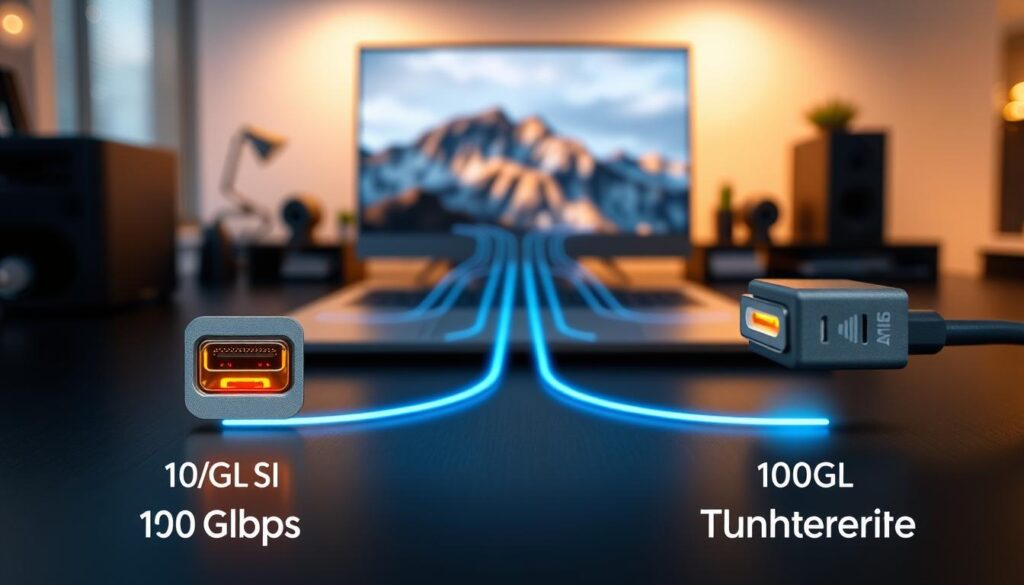
USB 3.2 reaches up to 20 Gbps, while Thunderbolt 3 and 4 reach up to 40 Gbps. USB4 Version 2.0 and Thunderbolt 5 can reach 80 Gbps. These are maximum rates; the port, cable, and connected devices affect real results. Higher bandwidth can make faster data transfer useful when moving large video files to external storage.
Understand Display Support and Bandwidth
Display support varies by port and laptop. Thunderbolt 5 can drive three 4K displays or one 8K display. Other USB-C ports may support fewer screens, so check the specifications before buying a dock. Thunderbolt 5 offers 80 Gbps bidirectional bandwidth, with up to 120 Gbps in asymmetric mode for video needs.
Connect Multiple Devices With Daisy-Chaining
Daisy-chaining links compatible devices in sequence through one connection. It can reduce cable clutter in a multi-device setup. Choose based on the files and displays you use, not speed alone.
| Connection | Maximum data rate | Display detail |
|---|---|---|
| USB 3.2 | 20 Gbps | Support varies by port |
| Thunderbolt 3 and 4 | 40 Gbps | Check laptop specifications |
| USB4 Version 2.0 | 80 Gbps | Support varies by device |
| Thunderbolt 5 | 80 Gbps bidirectional; up to 120 Gbps asymmetric | Three 4K displays or one 8K display |
Compare Charging and Power Delivery
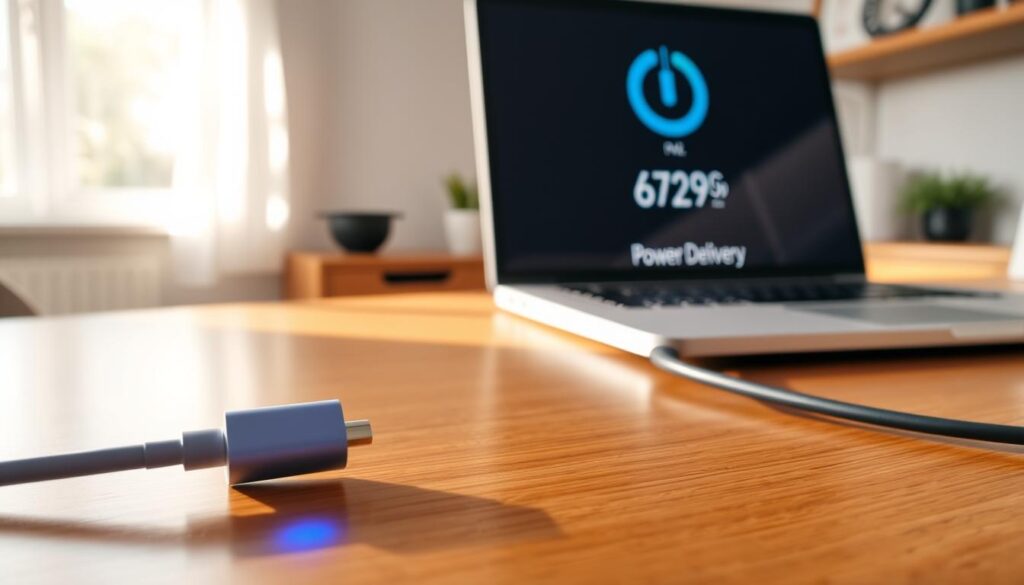
Charging speed depends on more than the connector. The power standard, charger, and connected equipment all play a part. Keep charging wattage separate from data transfer speeds: a faster connection does not always charge a laptop faster.
Check Charging Support and Power Ratings
A USB-C connection provides 2.5W by default. Power Delivery 3.0 can provide up to 100W, while PD 3.1 can reach 240W. Actual charging depends on what the devices can accept.
Thunderbolt 3 supports charging up to 100W with Power Delivery. Thunderbolt 4 requires PC charging support on at least one port. In either case, the laptop, charger, port, and cable must match the intended rating.
Before you use USB-C to charge, check the product specifications—especially when replacing a charger or cable. A compatible setup helps prevent slow charging and unexpected limits.
| Connection or standard | Charging capability | What to check |
|---|---|---|
| USB-C default | 2.5W | Supported power standard |
| Power Delivery 3.0 | Up to 100W | Device and cable ratings |
| PD 3.1 | Up to 240W | Charger, port, and laptop support |
| Thunderbolt 3 or 4 | Up to 100W for generation 3; PC charging required on at least one generation 4 port | Check laptop specifications |
Check Cable, Port, and Device Compatibility
Before ordering a dock or replacement lead in India, check the markings and ratings. A rounded shape alone does not confirm which standards a port can use.
Look for the Lightning-Bolt Symbol
A lightning-bolt symbol beside a port often signals Thunderbolt support. Check the laptop’s specifications too, since symbols and labels can vary. This extra step can help you choose gear that fits your setup.
Match Cables to Ports and Devices
A “thunderbolt usb-c” cable can connect to a USB-C port, but data transfer, video, and power delivery depend on that port’s features. A USB-C cable can handle basic tasks in a Thunderbolt port, yet may not deliver full speed. Search terms such as “usb-c thunderbolt” can describe related gear, so read the ratings instead of relying on the name.
For full performance, match a certified cable with a compatible port and supporting devices.
Before you buy, review the laptop manual and cable rating. Confirm that the cable supports the transfer rate and features you need. The right match avoids a costly guess.
How USB4 and Thunderbolt 5 Are Changing Connectivity
New connection standards can move large files and drive demanding screens through a single laptop port. But the label does not tell the whole story: feature support can vary by model, cable, and connected device. Check the specifications before you buy.
Understand USB4 Speeds and Feature Support
USB4 brings capabilities based on the Thunderbolt 3 protocol into the USB standard. Its maximum data transfer rate is 40 Gbps; USB4 Version 2.0 can reach 80 Gbps. These maximum transfer speeds do not guarantee the same results on every laptop. Compare the specific port rating and supported features, since implementation differs between devices.
Explore Thunderbolt 5 Bandwidth for High-Performance Setups
Introduced in 2024, Thunderbolt 5 offers 80 Gbps of bidirectional bandwidth, or up to 120 Gbps in asymmetric mode. Its PCIe Gen 4 foundation supports high-speed data and video workflows, including three 4K displays or one 8K display. That can help creative teams move large files and run multi-screen workstations.
For reliable speed and display support, match the laptop, cable, and connected gear. A compatible setup helps these standards deliver faster data transfer where it matters.
Choose the Right Port for Work, Study, and Everyday Use in India
Your daily routine is the best guide when choosing a laptop connection. Think about the accessories, screens, and files you use before paying for extra features.
When USB-C Is Enough for Common Laptop Tasks
For browsing, email, documents, charging, and common accessories, a USB-C port may be all you need. It can also connect one external display when the laptop supports video output. Check the port and cable ratings, since features differ across laptops.
When Thunderbolt Makes Sense for Docks and Multiple Displays
Choose a port with Thunderbolt support for a dock, several connected devices, or two or more 4K displays. Its higher bandwidth can help transfer large files and work with video. Thunderbolt 5 can support three 4K screens or one 8K screen. Confirm the laptop and cables match the setup.
Students, professionals, and businesses in India can compare these options with their real needs. The connector shape alone cannot confirm supported speeds or features.
| Use case | Good fit | Check before buying |
|---|---|---|
| Study and daily tasks | USB-C | Charging and display support |
| One external screen | Either, if supported | Video output and cable rating |
| Dock and several screens | Thunderbolt | Port, dock, and screen compatibility |
Find a Laptop Rental Partner in India With RentLappy
A reliable technology setup can grow with your plans, without a large upfront purchase. RentLappy helps make technology more accessible, affordable, and flexible for organizations and individuals across India.
Rent Equipment for Different Needs
Choose from laptops, desktops, servers, and networking equipment. RentLappy can tailor rental options to business needs, whether you are planning an event, training employees, or supporting remote work. If a laptop must connect to specific screens or docks, ask about its port and supported ports before confirming your order.
“Flexible access can help teams get the right technology when they need it.”
Connect With an Experienced India-Wide Partner
Founded by IT and electronics professionals with over 12 years of experience, RentLappy serves more than 5,000 customers. Its reach includes metro cities and tier-2 and tier-3 towns. Startups, corporates, freelancers, and educational institutions can discuss their needs, including data tasks and the devices required.
Contact RentLappy at D-97, Okhla Phase 1, Okhla Industrial Estate, New Delhi – 110020. Call +91-60003 70013 or email sales@rentlappy.com to explore rental options.
Conclusion
Think of USB-C as the connector shape, not a promise of performance. USB4 and Thunderbolt standards set what a port can do for data, displays, and charging. Generations 3 and 4 reach up to 40 Gbps; USB4 Version 2.0 and Thunderbolt 5 can reach 80 Gbps.
For daily tasks, this setup often meets the needs of common devices, basic data transfer, and routine laptop work. For docks, external graphics, multiple displays, or frequent large-file transfer, consider Thunderbolt 4 or 5. These options suit demanding workflows when every part supports them.
Before you buy in India, check your laptop specifications and match cables and ports to your needs. Compare supported speeds, charging, and display output—not just the shape. A quick check can help you avoid paying for features you will not use.