

Could one small change make your study or workday feel easier? A thoughtful desk setup can reduce clutter and make everyday tasks more comfortable, whether you’re at home or on campus. Laptop Mag’s 2025 roundup of tech accessories for remote workers shows how much interest this space continues to draw.
Start with the basics: a stand, keyboard, mouse, USB hub, and charging gear can support different routines. A desk pad, wireless devices, or a light may also suit your room and habits. The right choices depend on comfort, compatibility, price, and space for a chair. Adding one useful upgrade at a time keeps your setup manageable.
In India, students and teams may use laptops in shared rooms, home offices, or busy offices. This guide compares practical options and explains what to consider before you buy. RentLappy works to make technology more accessible and flexible for startups, corporates, freelancers, and educational institutions. With a little planning, you can build a home office setup that fits your needs today and can adapt over the years—without wasting time or sacrificing productivity.
Key Takeaways
- Choose gear that suits your daily study or work routine.
- Check comfort, device compatibility, price, and available space.
- A stand, keyboard, or mouse can improve your desk setup.
- Consider a USB hub, charging gear, and lighting needs.
- Add one upgrade at a time to keep your workspace practical.
- RentLappy supports flexible technology access across India.
How to Choose Accessories for Your Laptop Setup
Start with your routine, not a shopping list. Note which tasks feel awkward, then choose an upgrade that solves a real need. This simple way keeps your desk clear and your budget focused.
Match Each Item to Your Daily Routine
Students and people working home can ask whether a stand, supportive office chair, or storage tray would help each day. A swivel pencil drawer holds pens, pencils, SD cards, and small gadgets, freeing desk space. An MX Master 3 mouse can switch between a work laptop and a home PC, which suits people who move between devices.
Balance Comfort, Compatibility, and Cost
Check the fit with your devices before you spend time or money. Confirm the available ports and each port type, especially when comparing laptops and connected products. Then weigh comfort against price; the costliest option may not suit every home office. Compare practical options, including a standing desk, and choose what fits your space, storage needs, and routine.
| Need | What to check | Useful choice |
|---|---|---|
| Desk space | Small items within reach | Swivel pencil drawer |
| Device switching | Use across two computers | MX Master 3 mouse |
| Comfort and cost | Daily fit and budget | Compare practical options |
laptop accessories for productivity: Build a Setup That Works
A desk setup works best as a coordinated group, not a pile of separate purchases. One desk-setup review assessed 10 accessories, showing how each item can support a smoother work area. Pick a clear goal first, such as clearing the surface or improving the display.
A clean surface can make daily tasks feel easier. The ODISTAR desk vacuum removes dust and crumbs from both a desk and a felt mat. This small step helps keep useful items within reach and the work area tidy.
- A monitor or monitors expand the display area.
- A keyboard and mouse support comfortable input.
- A desk pad protects the surface and gives devices a steady base.
- Neatly routed cables reduce clutter around the office setup.
The review’s verdict puts cable management and a monitor light bar first among its suggested upgrades. Both can improve the space without changing every part of your setup. Choose one practical change at a time, then see how it fits your routine. That approach can save time and make the space feel more useful.
Laptop Stands for Better Screen Positioning
Screen height can change how comfortable your work area feels. An adjustable model lets you raise or lower the display to suit your chair or standing desk. It can also help a home office adapt when you switch between tasks.
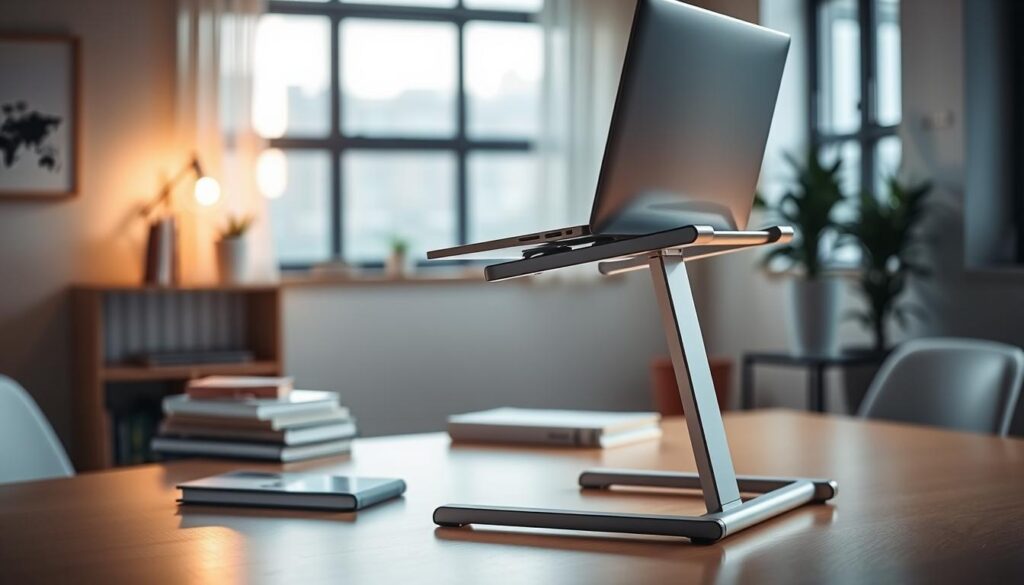
Choose an Adjustable Stand for Your Desk
A flexible work setup can make screen placement easier to change. A review of monitor arms notes that its reviewer often rearranges monitors to suit different work areas. You can use the same idea when selecting a stand: match its height and angle to your daily habits, not just its appearance.
Check Stability, Portability, and Size
Check the base, width, and weight limit against your device. A sleek design does not guarantee a stable fit. If you move between a home office, campus, and shared work areas, choose a compact stand that packs with ease.
- Test the base on a firm surface before daily use.
- Choose a light frame if you often change locations.
- Skip extra gear unless it supports your routine.
Pick screen support that fits your desk design and setup. A well-placed display may be all you need.
Monitors and Monitor Arms for More Screen Space
A larger display can give you room to keep a document, notes, and a video call visible at once. Select a monitor that suits your tasks, such as reading, design, or data work. A second screen may help, but it should fit your room and budget.
Choose a Display That Suits Your Tasks
Check screen size, resolution, and ports before you buy. One well-matched option can serve you better than two screens that crowd your work area. In a compact Indian office, check your viewing distance and available space first.
Adjust Height and Position With an Arm
An adjustable arm lets you change monitor height and position as your tasks shift. The reviewer uses Hover monitor arms at home and in the office. A desk-setup review notes their aluminum build, optional extension arms, and built-in cable management, which helps keep cords neat around monitors.
Before buying, confirm that your desk, display, and arm are compatible. Then decide whether an external screen meets your needs. A light touch with cable routing can leave room for a wireless keyboard, too.
Keyboards That Make Typing More Comfortable
Typing takes up much of a study or workday, so small details can shape how your hands feel. A quiet, steady tool may also suit shared rooms at home, campus, or an office.
Compare mechanical and low-profile designs
One reviewer spent nearly 16 years using poor keyboards and mice before upgrading. That long stretch made the value of a quality typing tool clear. When comparing options, think about key feel, sound, and how much desk space each design uses.
The Logitech MX Keys Mechanical is a low-profile mechanical keyboard with lights that turn on as your hands approach. The reviewer found it quieter than the Keychron K2 mechanical keyboard. That difference may matter if a roommate or coworker sits nearby.
- Choose a mechanical keyboard if you prefer distinct key feedback.
- Consider a low-profile keyboard if you want a slim shape and soft lighting.
- Check that its size leaves room near your monitor.
Match your choice to your typing habits and setup. The right feel is personal, so consider trying a keyboard before you buy.
Wireless and Ergonomic Mice for Long Workdays
A comfortable shape matters when you spend long hours at a desk. If your hand feels strained after a session, consider how the device fits your grip and supports steady movement. Small changes can make each day feel easier.

The Logitech MX Master 3 offers customizable controls that can streamline a work setup. It can also switch between a company laptop and a home PC, which helps when you move between devices. The reviewer upgraded after almost 16 years with poor keyboards and mice, but your needs may differ.
Choose a wireless model that feels right in your hand. A light design can be easier to move, while a reliable connection keeps your surface clear. Take time to assess comfort, grip, and office habits before you buy.
- Check whether the shape suits your hand during extended use.
- Explore customization options that match common tasks.
- Test device switching if you use more than one computer.
- Compare fit and comfort, not just convenience.
The best choice supports your routine at home or in a shared office. A few minutes of testing can help you find a comfortable fit that works across long days.
USB Hubs for Extra Ports and Easy Connections
Many modern devices need more connections than a computer can offer. A USB hub can add room on a desk, but extra ports only help when they match your daily needs. First, list the gear you connect, such as a mouse, keyboard, monitor, or storage drive.
Check Port Types, Power Delivery, and Compatibility
Compare the hub’s USB ports with your device plugs. Check port types, charging support, and power needs before choosing a model for laptops or other equipment. Some devices need more power than a basic connection can supply, so review the hub’s limits.
- Count the ports you need now, then leave room for one likely addition.
- Map each cable and confirm it can reach the hub from your setup.
- Check that the hub works with your computer and connected devices.
The Ultimate Cable Management Box uses grommet pass-throughs to guide wires through neat openings. That design shows how planning connection paths can reduce clutter. Choose a USB hub based on the devices you use, not a long list of extras. A simple connection plan can keep your setup tidy and easy to use.
Chargers and Power Accessories for Reliable Work
Match charging products to your laptop’s needs and the outlets near your desk. Check the charger’s output and device ports, then confirm that its plug fits the correct USB port. A quick check can prevent a failed connection during a busy day.
Plan where charging gear will sit before adding it to your work area. Power strips and bulky power blocks can crowd the surface when they lack a clear spot. The reviewed Ultimate Cable Management Box is designed to hide strips and bulky power blocks, keeping them contained and out of the way.
Check charger compatibility before relying on a new item during work time. Also measure cable reach and consider wireless charging needs. A little planning keeps your setup tidy and ready to use.
- Confirm the charging standard and output match your device.
- Make sure cables reach outlets without pulling or bending.
- Leave easy access to plugs you may need to unplug.
| Check | What to confirm | Why it matters |
|---|---|---|
| Charging fit | Device needs and charger output | Supports steady charging |
| Connections | Available ports and plug type | Avoids connection issues |
| Storage | Room for strips and blocks | Reduces surface clutter |
Cable Management for a Cleaner Desk
Loose cables can make a work area feel crowded. A cable box hides power strips and bulky power blocks beneath your desk, while keeping key connections within reach. In a compact home workspace, that can clear the surface without making plugs hard to find.
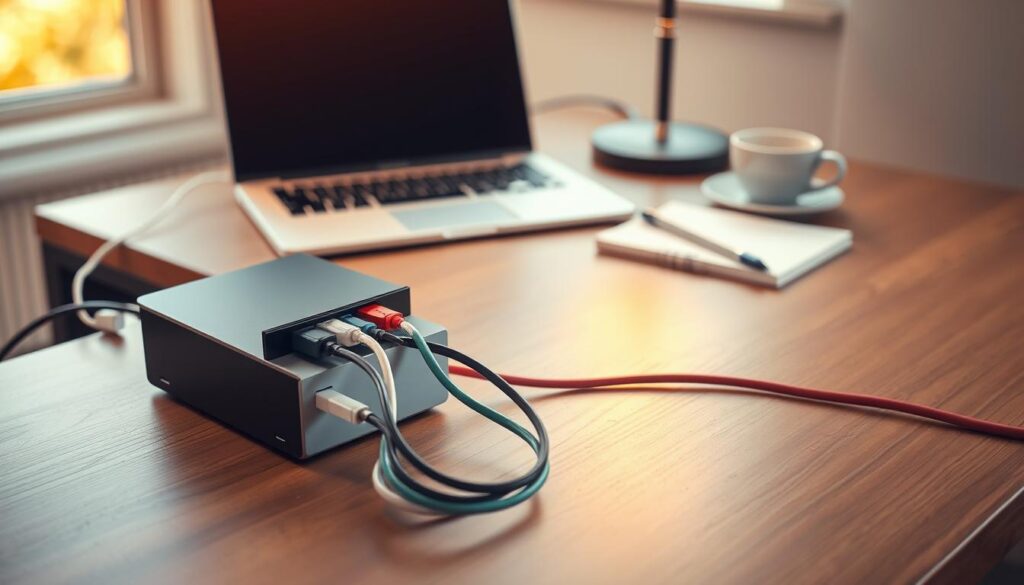
Route Wires Neatly and Keep Connections Accessible
The reviewed Ultimate Cable Management Box uses formed steel and grommet pass-throughs to guide cables. Its spacious back panel gives you quicker access when you need to check a plug or change a connection. It keeps the setup tidy without burying useful connections.
Plan cable paths before moving furniture or adjusting a standing desk. Leave enough slack so cables do not pull loose as the surface shifts. Keep the box clear of a desk pad and other items that may block access.
- Group cables by device to make them easier to trace.
- Leave frequently used plugs within reach.
- Route extra length neatly rather than wrapping it too tightly.
This simple way to manage wires can make cleaning easier, too. A quick check now and then helps keep the setup neat and ready to use.
Desk Pads to Protect Your Work Surface
Daily use can leave scratches on a work surface, especially when you move a keyboard, mouse, or other items around. A protective pad creates a simple barrier without changing your setup. The reviewer notes that the DeltaHUB Desk Pad helps guard desk surfaces from scratches.
Size matters as much as material. The reviewer found a smaller pad cramped, while larger options covered too much of the desk. Before you choose one, measure the open area and check how much room your keyboard, mouse, and other daily items need.
Also consider the surface finish and design. Covering a large section may hide details you enjoy, while the right fit can protect the work area and preserve its look. A well-sized pad supports daily use without making the whole desk feel covered.
- Measure the available space before shopping.
- Leave room to move your mouse with ease.
- Choose a material and color that suit your desk’s finish.
A little measuring can help you find a practical fit that feels neat and comfortable.
Monitor Light Bars and Desk Lighting for Focus
Evening study sessions can strain your eyes when a bright screen sits in a dim room. A balanced home office setup pairs focused task lighting with a softer glow around the workspace.
Look for adjustable light with minimal screen glare
Choose a monitor light bar with controls that let you adjust brightness and direction. The reviewer’s top pick is the BenQ model, which uses a wireless puck to change its settings. The reviewer also reports less light bleed across the monitor than with the Xiaomi light bar used at home.
Position the bar so it brightens your desk without shining into your eyes or washing out the display. Comfortable, adjustable lighting can make reading and screen work easier.
Combine task lighting with comfortable ambient light
One source rarely suits every task across an office. Pair focused task lighting with a gentle room glow, then adjust each as needed. The review lists a monitor light bar among the first two desk-setup upgrades to consider.
- Use task lighting to brighten notes and nearby items.
- Keep ambient lighting soft to balance screen brightness.
- Adjust the bar when your work or room conditions change.
Small changes can make the workspace feel more comfortable.
| Choice | What to look for | Benefit |
|---|---|---|
| Monitor bar | Adjustable brightness and direction | Focused task lighting |
| Ambient source | Soft, even room glow | Balances screen brightness |
Office Chairs and Footrests for Better Desk Comfort
A well-fitted office chair can support an easier workday. Check that your feet rest flat and your knees bend with ease. People working from home can also adjust seat height to match the desk and screen.
Rollerblade-style wheels are reported to roll more smoothly over low-pile carpets and rugs than standard plastic casters. The review also describes them as safer on hard floors, such as tile and wood. Smoother movement can help you shift position with less effort.
“Good support starts with a seat and footrest that suit your space.”
Footrests offer different feels. The Pogo aluminum model has a teardrop shape and a rocking feature. The Everlasting Comfort model pairs a soft cover with a squishy internal pad. An office chair and footrest should match your preferred support, not just their appearance.
Consider footwear and posture, especially near a standing desk. Small fit changes can make long sessions feel more comfortable.
- Check wheel movement on your floor type.
- Try each footrest with your usual shoes.
- Choose firm or cushioned support based on what feels right.
Storage Accessories to Keep Your Setup Organized
Small items can crowd a work surface, even when each one has a clear purpose. Move daily tools off the main area to keep useful space clear. A compact organizer keeps common supplies close without adding bulk.
The reviewed swivel pencil drawer stores pens, pencils, SD cards, and small gadgets. It attaches beneath your desk and rotates open or closed, so you can reach items with a quick turn. This simple design suits a minimal setup and keeps everyday supplies out of sight.
An under-desk storage drawer may suit a standing desk or a compact Indian workspace with limited surface space. Check the fit beneath the top, then sort items by how often you use them. Keep daily tools close and place seldom-used items farther back. That way, storage improves access instead of adding clutter.
- Keep pens and pencils nearby when taking notes.
- Store SD cards and small gadgets together.
- Move rarely used items out of the main work area.
Build a Productive Home Office Setup on a Budget
A smart home office setup can grow one step at a time. Start with a need you notice each day, then make one change. This way, you can stay on budget and avoid filling your desk with gear you may not use.
Prioritize Upgrades That Improve Comfort and Organization
A desk-setup review assessed 10 accessories, including a desk pad, monitor arm, footrest, keyboard, and mouse. It recommends cable management and a monitor light bar as the first upgrades to consider. Organization and comfort can matter more than buying every item at once.
“Choose the change that solves a real problem in your daily routine.”
Students and people working from home can compare a laptop stand, chair, mechanical keyboard, or mouse with their own habits. Check desk space, power needs, and available ports before choosing products. This matters in a compact office setup or beside a standing desk.
- Pick one upgrade that supports comfort or keeps cords neat.
- Check how it fits your work area and routine.
- Use it for a few days, then decide what would help next.
A thoughtful choice can improve your setup without stretching a small budget.
RentLappy’s Laptop and IT Equipment Rental Support Across India
Flexible technology access helps organizations meet changing needs without committing to every device upfront.
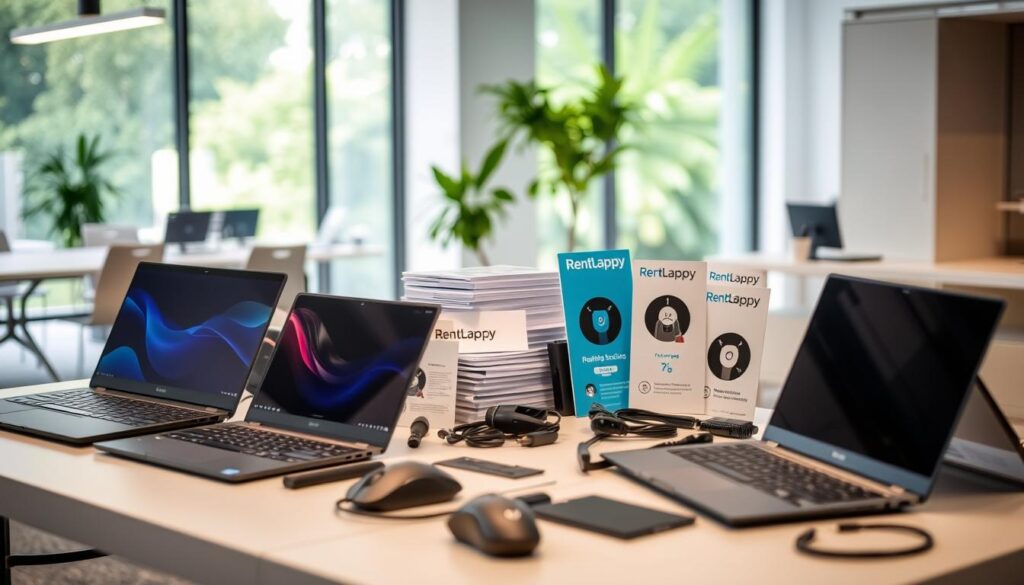
RentLappy serves as an India-wide rental partner, supplying laptops, desktops, servers, and networking equipment shaped around business needs. Its products support startup operations, corporate events, employee training, and remote work, from a home setup to a larger office. Teams can check device quality, power needs, ports, and charging requirements before arranging equipment.
Equipment choices for changing business needs
Rental options include laptops and other equipment that can suit a single desk or a larger team. RentLappy aims to make technology more accessible, affordable, and flexible for startups, corporates, freelancers, and educational institutions.
Experience serving customers across India
IT and electronics professionals founded RentLappy with more than 12 years of industry experience. The company reports serving over 5,000 customers across metro cities and tier-2 and tier-3 towns. Across those years, it has helped organizations access technology that fits their needs.
Contact RentLappy in Okhla, New Delhi
Reach out to discuss equipment needs and rental details.
- Address: D-97, Okhla Phase 1, Okhla Industrial Estate, New Delhi – 110020
- Phone: +91-60003 70013
- Email: sales@rentlappy.com
A practical rental plan can help your team adapt as its needs change.
Conclusion
An effective workspace grows from choices that solve real needs. A stand, keyboard, mouse, and monitor can keep your desk clear and your display easy to use.
Select accessories that fit your laptop, then check compatibility, ports, charging needs, and comfort as you shape a home office setup. The review favors cable management and a light bar as useful first steps.
Try one change, give it time, and see if it supports productivity before adding more. Students and professionals across India can build a practical office without buying every item at once.
Need temporary equipment? RentLappy offers laptop and IT equipment rentals across India, with options that can adapt as needs change.