
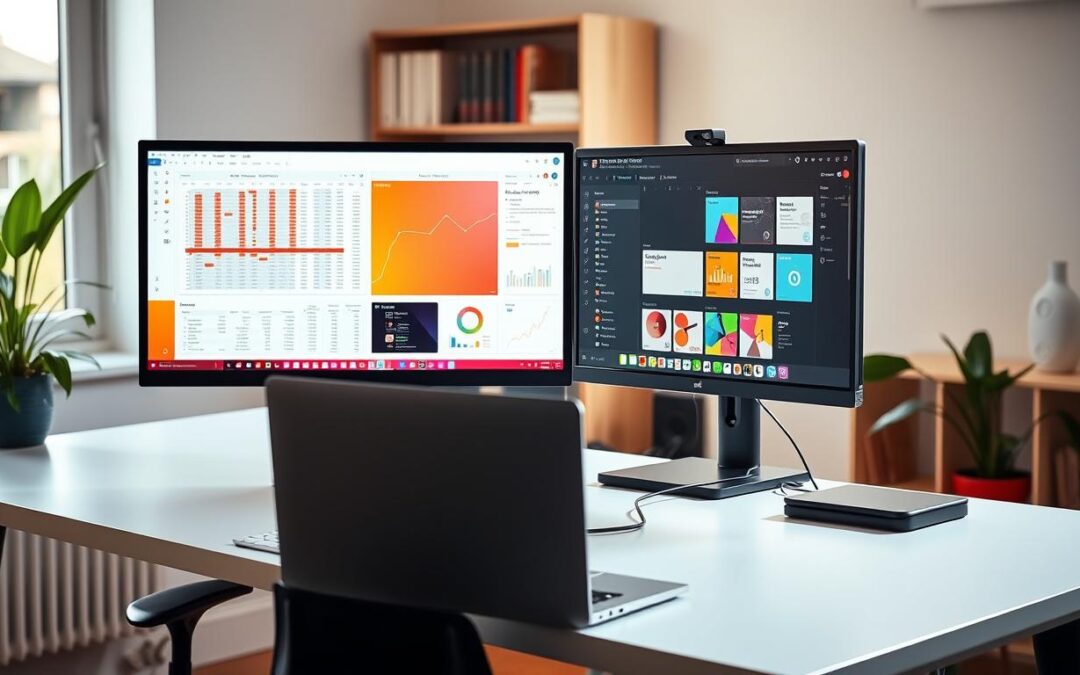
Could a pair of extra screens make your workday feel less crowded? A dual monitor setup can give you separate space for email, documents, and video calls, without constant window switching. It can also make a home office feel more organized, whether you work in Mumbai, Delhi, or elsewhere.
Before buying cables or a dock, check your laptop’s available ports and graphics capability. HDMI, USB-C, Thunderbolt 4, and DisplayPort are common options, but the right choice depends on your device. Many current systems support multiple external displays; the graphics hardware sets the actual limit. A quick equipment check can prevent a costly mismatch.
Next, compare direct cables, a USB-C adapter, and a docking station. Each can suit a different desk and budget. Windows 11 includes Display settings for arranging screens, choosing a main display, and extending your desktop. This guide also covers basic troubleshooting, so you can build a reliable monitor setup and use dual screens for better productivity. The goal is a smooth setup that fits your everyday work.
Key Takeaways
- Check available ports and graphics capability first.
- Compare HDMI, USB-C, Thunderbolt 4, and DisplayPort options.
- Choose direct cables, an adapter, or a docking station.
- Arrange external displays in Windows 11 Display settings.
- Use separate screens for a more focused desktop and smoother workflow.
- Try basic troubleshooting if a display does not appear.
Check Your Laptop’s Ports and Graphics Support
Start with a quick look at the sides and rear of your laptop. Note the ports before choosing cables or an adapter. A clear port map makes monitor setup easier.
Identify HDMI, USB-C, Thunderbolt, and DisplayPort Connections
HDMI carries video and audio. USB-C carries video only when its port supports DisplayPort Alternate Mode. Some ports handle charging and data but lack video output, so make sure the USB-C cable suits the port. Thunderbolt 4 can support multiple displays through a dock. DisplayPort suits high-resolution screens, while VGA serves older projectors.
Confirm Graphics Support
Check your computer’s graphics specifications; capacity varies by model. For example, some laptops support two external monitors, while others allow fewer. In Windows 11, open Settings > System > Display > Advanced display. Review detected screens and refresh-rate details on the display settings page.
| Connection | Video support | Common use |
|---|---|---|
| HDMI | Video and audio | TVs and an external monitor |
| USB-C cable | Video with DisplayPort Alternate Mode | Check port features first |
| Thunderbolt 4 | Multiple displays through a dock | Dock-based setups |
| DisplayPort or VGA | High refresh rates or analog video | Modern screens or older monitors |
Choose the Right Cables, Adapters, or Docking Station
Your best option depends on the available ports, screen needs, and desk routine. Compare cable and port requirements before buying, and make sure each item supports the display resolution you want.
Connect monitors directly when your laptop has two video output ports
Use a direct HDMI cable for one screen and a USB-C cable with HDMI support for another. This simple setup avoids extra hardware. Check that the USB-C port carries video before choosing a cable.
Use a USB-C or Thunderbolt docking station for a single-cable setup
A docking station can provide HDMI or DisplayPort outputs, USB ports, Ethernet, and charging through one connection. HP EliteBook and HP OmniBook models are examples of laptops that support USB-C docking. This choice suits a permanent desk setup.
Choose a USB-C dual HDMI adapter for a portable connection
A dual HDMI adapter is compact and easy to carry. Some models limit resolution or refresh rate when both outputs run at once. Check those details before purchase.
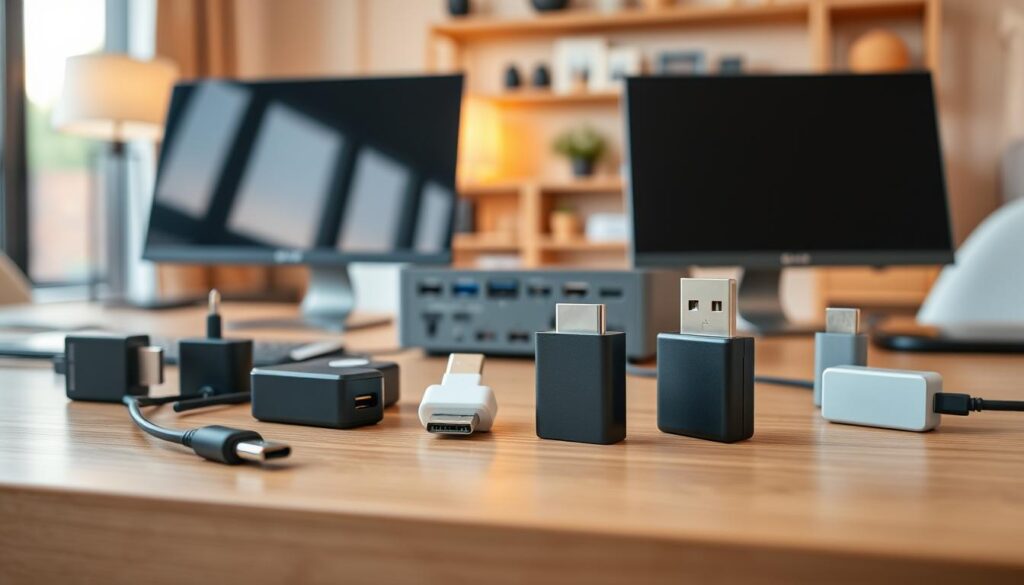
Quick guide: Pick the setup that matches your gear and daily routine.
| Option | Best fit | Check first |
|---|---|---|
| Direct cables | Available video ports | Port and cable support |
| Docking station | Fixed desk setup | Display outputs and power |
| USB-C dual HDMI adapter | Portable use | Resolution and refresh rate |
How to connect two monitors to laptop
Pick a wiring method that suits your desk and the video features of your gear. Each route can support a tidy dual monitor setup, but port limits and accessory specs still matter. Match every cable and device before powering up.
Set up direct cable connections
Run one video cable from each screen into a separate output port. HDMI, DisplayPort, or a video-capable USB-C cable can serve each path. Check that every cable and output supports your chosen resolution. This option keeps the monitor setup simple and needs no dock.
Use a docking station for both displays
Plug the docking station’s USB-C or Thunderbolt lead into the computer. Then run HDMI or DisplayPort cables from the dock’s outputs. A powered dock can also handle charging and desk gear, keeping a dual monitor setup neat.
Use a USB-C dual HDMI adapter
Insert the adapter in the USB-C port, then attach an HDMI cable from each output. Check that the port carries video and the adapter supports the desired resolution. Turn on the displays and give Windows 11 time for detection before opening display settings.
Configure Multiple Displays in Windows
After the cables are in place, set how Windows handles each screen. Windows 11 keeps these controls in one area, so you can choose a layout that suits your desk and daily work.
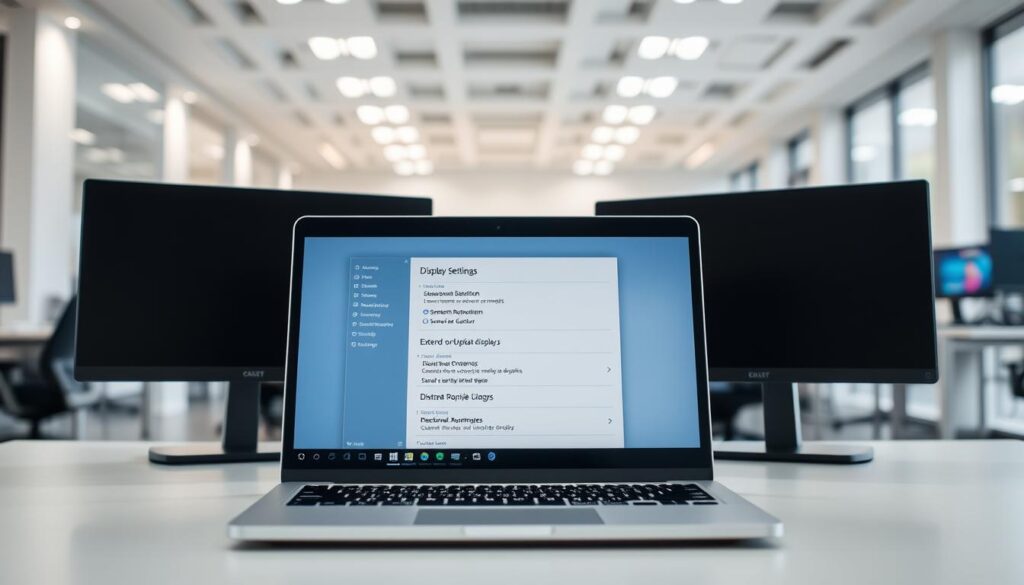
Open Display Settings and Find Each Screen
Right-click the desktop and select Display settings. Numbered boxes show each detected display. Select Identify if you need help matching a number with a physical screen. If a monitor is missing, open Settings > System > Display > Multiple displays, then select Detect.
You can also select a display and set its resolution. For example, a screen may run at 1920 × 1080 at 60 Hz. Your computer’s available settings depend on the screen and graphics hardware.
Pick a Display Mode
Press Windows + P for quick options, without opening the full settings menu:
- Extend: Use separate workspaces across dual monitors.
- Duplicate: Show the same content on each display.
- Second screen only: Turn off the laptop screen.
- PC screen only: Use the built-in screen alone.
“Extend” gives each screen its own workspace.
For a dual monitor setup, Extend is usually the most flexible option. Choose Duplicate for a shared view, such as a presentation. These Windows options make it easy to use dual screens for different tasks.
Arrange Your Screens and Adjust Display Settings
An orderly layout makes a dual monitor setup feel natural, whether your screens sit side by side or one above the other. In Windows, open Display settings and select Identify; each display shows its assigned number.
Match the layout with your desk
Drag the numbered rectangles until they match your desk, then select Apply. Move the mouse across each screen; the pointer should follow your hand. If it travels in an odd direction, adjust the layout and test again. This quick check can make daily navigation smoother.
Choose a suitable resolution and refresh rate
Select each display in settings, then pick a resolution and refresh rate it supports. This helps different screens perform well within one monitor setup. For example, one monitor may use 2560 × 1440 at 144 Hz, while a 4K display may run at 60 Hz. Check the specs first, and make sure each choice suits the panel.
Use the values below as a guide; available options vary by screen.
| Screen type | Example resolution | Refresh rate |
|---|---|---|
| QHD monitor | 2560 × 1440 | 144 Hz |
| 4K display | 4K | 60 Hz |
| Mixed monitors | Set per-panel values | Use supported rate |
Understand When an HDMI Splitter Will—and Won’t—Work
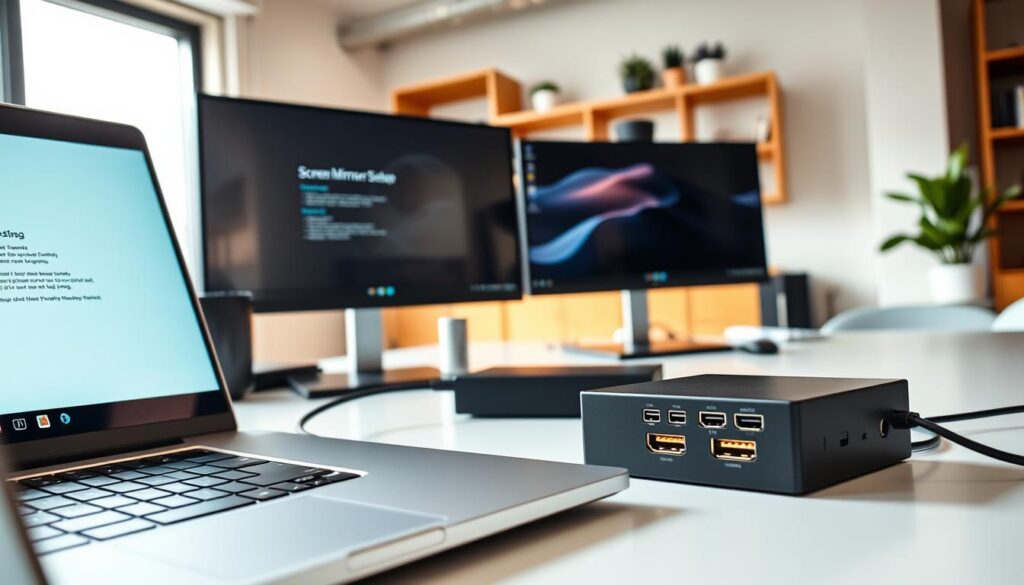
A small HDMI splitter changes what appears across your desk, but not how you use each display. It mirrors one video signal across both monitors, so each shows the same content.
That suits presentations in a Delhi meeting room, where an audience needs the same view. Slides, menus, and shared pages appear alike on every attached panel.
However, a splitter cannot extend a desktop into separate work areas. It treats the pair as one mirrored output, not as independent monitor spaces.
For separate work areas, choose a compatible dock or adapter. Before buying, check its outputs, resolution, and display behavior. These options serve different needs; a dock is often the better option for independent work.
“A splitter mirrors; it does not extend.”
In short, choose mirroring for shared viewing and extended displays for separate tasks. Check the specifications before purchase, since computer and accessory support can vary.
| Setup | What appears | Best use |
|---|---|---|
| HDMI splitter | Same image on each panel | Presentations |
| Docking station | Separate work areas | Independent tasks |
| Built-in display mode | Mirrored or extended view | Flexible desk use |
Troubleshoot a Laptop That Detects Only One Monitor
When a desk setup shows one screen, check each link before changing settings. A loose cable or wrong input can hide a screen, even when the equipment works. This quick check often solves routine issues in a home office or shared workspace.
Check cable connections and input sources
Seat both cables firmly, confirm power, and match laptop ports with screen inputs. Use the on-screen menu to select HDMI 1, HDMI 2, or DisplayPort. If a USB-C cable or adapter feeds the second screen, make sure the port supports display output. For a docking station, check its power and output lights.
Refresh drivers and search for missing screens
Update graphics drivers through Windows Update or Intel, AMD, or NVIDIA, then restart the laptop. In Windows 11, Detect sits under Settings > System > Display > Multiple displays. Run Detect if the computer still misses a screen. Check each monitor input in display settings.
If you connect two monitors through an HDMI splitter, remember that it mirrors one signal. Choose a compatible dock for separate workspaces. For two external monitors, confirm that each port and accessory supports an independent display.
Make Your Dual-Monitor Setup Work Better for You
A dual monitor setup should fit your habits, not force a new routine. In Windows 11, choose a primary display in Display settings. The taskbar and new windows then appear on the screen you use most.
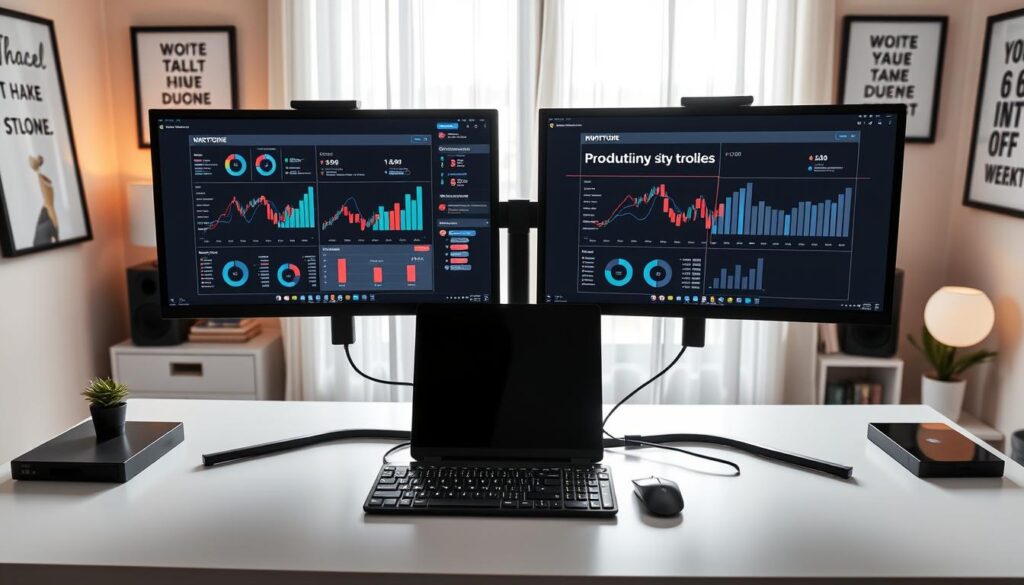
In extended mode, move windows between screens as tasks change. Arrange each monitor so its place in settings matches your desk. Windows supports different sizes and resolutions, letting each display suit its content.
- Set your main view: Choose the primary display for daily work.
- Match your desk: Place each monitor in settings based on its real position. This makes window movement feel natural.
- Set each screen: Pick a size and resolution that suit the task, such as reading reports or editing images.
- Plan work areas: For business or home use, give key apps separate space across a larger desktop. This can support productivity.
- Keep gear handy: Place the USB-C cable, docking station, or adapter within reach. Reconnecting your laptop then won’t disrupt the monitor setup.
Before you connect two monitors, consider how you use dual screens each day. A flexible option can make your dual monitor workspace easier to manage, whether you work at home or in an office.
Explore Flexible IT Rentals from RentLappy
A flexible technology plan can help teams build a capable desk without a large upfront purchase. RentLappy offers rental choices for a laptop, a computer, and other workplace needs, with terms that suit changing plans.
Choose equipment for changing needs
Rentals include laptops, desktops, servers, and networking equipment. A USB-C cable can support a suitable desk setup, while rental plans help organizations avoid relying only on purchases. Options serve startups, corporates, freelancers, and educational institutions.
Work with an experienced India-wide provider
RentLappy aims to make technology more accessible, affordable, and flexible. Its founders bring over 12 years of IT and electronics experience. The company has served 5,000+ customers in metro cities and tier-2 and tier-3 towns across India. Services support startup operations, corporate events, employee training, and remote work.
Reach the team in Okhla, New Delhi
For a business rental inquiry, call +91-60003 70013 or email sales@rentlappy.com. Visit D-97, Okhla Phase 1, Okhla Industrial Estate, New Delhi – 110020. Share your equipment needs for a suitable rental plan.
| Rental category | Common use | Who it can support |
|---|---|---|
| Laptops and desktops | Daily work and training | Startups and institutions |
| Servers | Technology operations | Growing organizations |
| Networking equipment | Office and event setups | Teams across India |
Conclusion
A smooth desk starts with a quick review of video ports and graphics limits. Each laptop model handles external screens in its own way. Choose direct cables, a USB-C adapter, or a dock that suits your gear.
In Windows 11, open Display settings and select Extend for separate work areas. Arrange the screen tiles to match your desk, set a clear resolution, then test pointer movement across displays. If one screen stays blank, check the cable and input source, update graphics drivers, and run display detection.
A dual monitor setup can make focused work feel easier. With a practical layout, dual monitors support different tasks at home or in an office. Use dual screens in a way that fits your day.