

Could a single drive failure erase hours of work—or even a piece of your next novel? One writer reported losing 80 pages after a hard-drive failure, with no second copy to restore. That kind of loss can affect anyone who keeps important files on one machine.
This article explains practical ways to protect everyday work, personal documents, and Windows settings. You’ll learn about automatic local and cloud backup options, including the 5 GB of free OneDrive storage that comes with a personal Microsoft account. It also introduces the 3-2-1 approach: keep three copies of your data, use two types of storage, and store one copy off-site. A simple routine can make data loss less stressful.
RentLappy aims to make technology accessible, affordable, and flexible for startups, corporates, freelancers, and educational institutions. With 12+ years of IT and electronics experience and more than 5,000 customers, the company rents laptops, desktops, servers, and networking equipment across India—from metro cities to tier-2 and tier-3 towns.
For technology rentals, contact RentLappy at D-97, Okhla Phase 1, Okhla Industrial Estate, New Delhi – 110020; call +91-60003 70013 or email sales@rentlappy.com.
Key Takeaways
- Keep more than one copy of important work and personal files.
- Use both local storage and a cloud option when possible.
- OneDrive offers 5 GB of free cloud storage with a personal Microsoft account.
- The 3-2-1 method spreads copies across storage types and locations.
- RentLappy provides flexible technology rentals across India.
Why Backing Up Your Laptop Files Matters
Important files often hold years of work, family memories, and key records. Losing them can disrupt work and daily life, especially when one computer holds the only copy.
Protect documents, photos, and videos
One writer reportedly lost 80 pages of a novel after a hard drive failed. No second copy existed. A similar loss could affect documents, photos, or videos that matter to you.
Prepare for common risks
A drive can fail without warning. Accidental deletion, malware, and system crashes can also erase data. SMART tools may flag some disk problems, but a healthy status cannot promise that a hard drive or SSD will keep working.
A dependable backup plan adds protection: keep three copies of your data on two types of storage, with one copy off-site, such as in the cloud. Automatic backups reduce the need to remember each time. Review folders and Windows settings as your needs change, and make sure your recovery copy stays safe.
A Practical laptop backup guide for Choosing Your Backup Strategy
The right setup is one you can keep running, even during a busy week. For many people, that means using local storage and an off-site copy together.

Combine local and cloud copies
Pair an external drive with cloud backup. A local hardware fault or an emergency at home is less likely to affect every copy. Keep the external drive disconnected when it is not in use to reduce its exposure to malware.
Use a three-copy approach
The 3-2-1 method keeps three copies of your files on two types of media, with one copy stored away from home. This spreads risk across devices and locations.
Match tools and capacity to your needs
Compare built-in Windows tools, cloud services, and backup software. Duplicati is free, open-source software that connects to external storage and several cloud services. Its schedule options range from hourly to yearly.
Choose a backup drive two or three times larger than your computer’s drive. Extra space can hold changing folders and earlier file versions. Pick simple options if convenience matters most, or flexible tools if you want more control.
Decide Which Files and Folders to Back Up
Before choosing storage options, map where your daily work lives. Windows Backup can sync Desktop, Documents, Pictures, Videos, and Music to OneDrive. These standard folders cover many personal records, but they may not hold every file you rely on.
Check custom folders and work locations, too. One writer found an important document in Downloads after a drive failure. That file was missing from the selected copies.
“Check the folder before you count on its contents being protected.”
- Include personal data, such as photos and videos, along with work documents.
- Review project folders and other places your computer workflow depends on.
- Consider how much storage each location needs before picking a backup option.
Revisit your folder list when work, hobbies, or storage needs change. A quick review helps keep your backups useful as your routine shifts.
Set Up Windows Backup and OneDrive
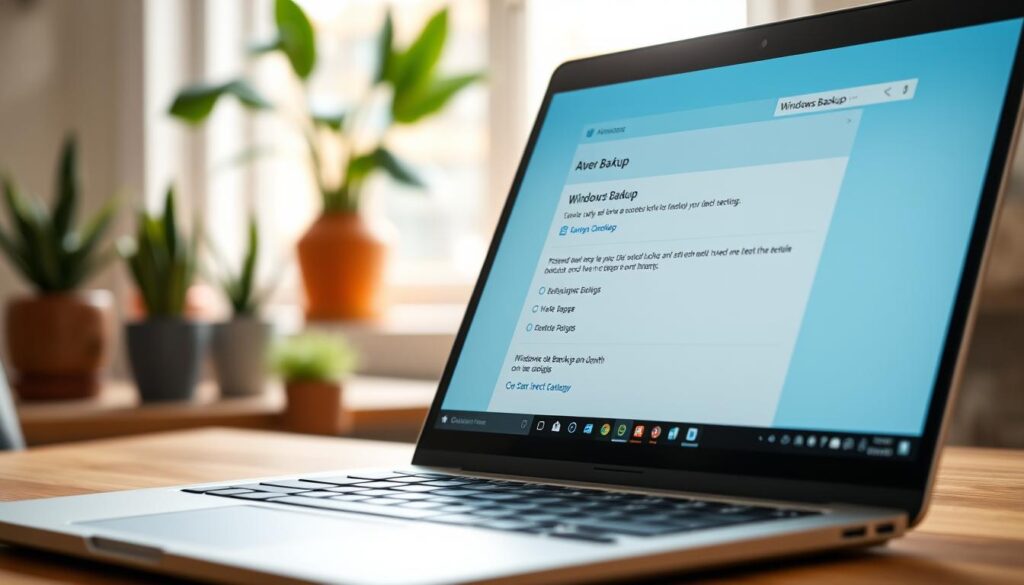
Windows Backup can save selected folders and preferences to your Microsoft account. Its consumer app needs a personal account; work and school accounts are not supported. The setup takes only a few minutes.
Save folders, settings, and preferences
Open Windows Backup from Start. Choose folders such as Desktop, Documents, Pictures, Videos, and Music. Then toggle the settings you want to keep, including installed apps, accessibility, Wi-Fi details, and personalization. Select only the items you need.
Check OneDrive space and backup status
A free Microsoft account includes 5 GB of OneDrive storage. Check your available space before syncing folders, especially if you store many photos or videos. You can review status in the app or under Settings > Accounts > Windows backup.
Windows 10 support ended on October 14, 2025. If your computer still runs it, consider moving to Windows 11 to receive ongoing support. Check that files and settings sync as expected, so you know what you can restore later.
Use File History for Automatic Windows Backups
When a folder changes often, automatic copies can save time and reduce stress. File History saves versions of personal folders to an external drive or supported network storage. It can also help you restore earlier copies if a file is changed or removed.
Set the schedule and keep useful versions
File History runs once an hour by default. Open its settings in Control Panel to choose a schedule from every 10 minutes to daily. You can keep versions until space is needed or preserve them indefinitely. Check the backup settings after setup, then test a restore.
It covers Documents, Pictures, Music, Videos, Desktop, and local OneDrive folders. Custom folders may need to be added or checked. Connect the drive when copies are due, and confirm the system can find it.
| Option | Available choice | What to check |
|---|---|---|
| Schedule | Every 10 minutes to daily | Pick a useful interval |
| Retention | Until space is needed or indefinitely | Allow enough disk space |
| Folder coverage | Common personal folders | Review custom locations |
Back Up Important Files to an External Drive
Connect an external drive to your computer, then copy key documents, photos, and videos. For ongoing protection, set an automatic backup with Windows tools or trusted software. Keep the drive unplugged between scheduled backups to limit exposure to malware.
Choose a backup drive with two or three times the capacity of your computer’s disk. This leaves room for new data and saved versions. A 5,400-rpm hard drive can handle background copies well, so speed need not be your top concern. An SSD may transfer files faster, but it can cost more.
- The 8-TB WD Elements is a desktop option for larger storage needs.
- The portable 5-TB My Passport Ultra offers space you can carry between locations.
RentLappy supports businesses across India with laptops, desktops, servers, and networking equipment for events, employee training, or remote work. More than 5,000 customers use its rental services in metro cities and tier-2 and tier-3 towns.
Add Cloud Backup for Off-Site Data Protection
An off-site copy can help protect your work if a local device is lost, damaged, or stolen. Online plans vary in price, capacity, and recovery options, so compare their features before you choose.
Understand the difference between file syncing and backup
Google Drive and Dropbox sync files across devices. That is useful, but syncing can also copy unwanted changes or corrupted data to connected accounts. A dedicated service keeps separate copies online, which can help if your computer or external drive fails.
Review cloud storage, version history, and account security
Compare the limits and costs. Backblaze lists unlimited storage for one machine at $100 per year or $9 per month, with 30-day file-version retention by default. IDrive lists 5 TB for $69 in the first year, then $99 per year. Acronis True Image lists 256 GB for $73 per year.
Before you pay, check the version history, available space, and account security settings. Use a strong, unique password and turn on two-step verification. Make sure the plan fits your data needs and gives you a clear way to restore older files. A quick review now can save time when recovery matters.
Create a System Image for Full Computer Recovery
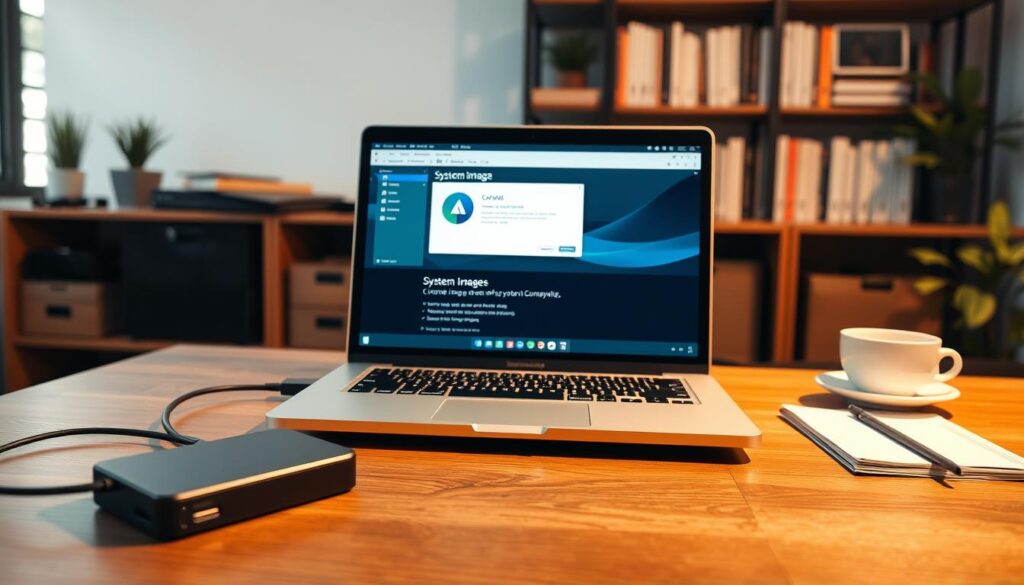
When a major update is near, a full system image can give you a way back to your current setup. It captures Windows, installed apps, settings, and files, so you can restore the whole computer—not just one file.
Save a copy of your complete setup
In Control Panel, open Backup and Restore (Windows 7) and choose the option to create an image. Select an external hard drive or network-attached storage as the destination. Check its capacity first: an image can take substantial space because it records the broader state of your machine.
Consider making an image before a major Windows update or hardware upgrade. You can also create one once or twice a year. This system-level backup complements more frequent file backups; it does not replace them. Keep separate copies of changing data, since an older image may not include recent work.
| When to create | Where to save | What it supports |
|---|---|---|
| Before major changes or yearly | External drive or network storage | Full system recovery |
| Once or twice yearly | Check available storage space | Windows, apps, and settings |
Secure, Schedule, and Check Your Backups
A reliable routine keeps copies current and makes recovery less stressful. Set a schedule that fits your work, then check that each copy completes as planned.
Automate copies and limit ransomware exposure
Use software or built-in Windows options to save changes on a regular schedule. Automatic copies reduce the chance that a busy day will leave recent files unprotected. When an external drive is not in use, disconnect it from the computer. This step can limit its exposure to ransomware that reaches connected drives.
Test recovery and review your folders
Restore a sample file from time to time. This simple test confirms that your storage, settings, and recovery process work. Update selected folders when new projects or personal needs arise, and check available space.
SMART tools can show warning signs on a hard drive or SSD. Try CrystalDiskInfo on Windows, Disk Utility on Mac, or GSmartControl on Linux. These checks cannot guarantee a drive will not fail. Keep multiple copies of important data, and review your protection plan as your needs change.
Restore Files When You Need Them
When a document goes missing or changes by mistake, choose the restore method that fits the problem. You can bring back one item or return the whole computer to an earlier state.
Recover earlier versions with File History or OneDrive
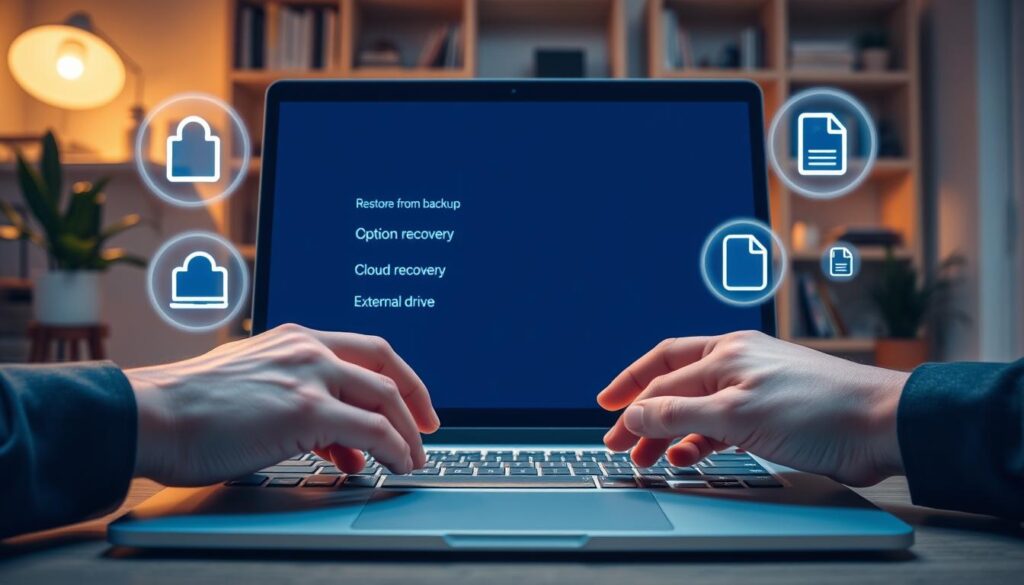
In Windows, search for “Restore your files with File History.” Browse the available versions, select an item, and restore it to its original folder. Choose another location if you want to keep the current copy untouched. Check that the external drive is connected.
For cloud-stored documents, OneDrive has version history and a Recycle Bin for deleted items. After a ransomware incident, “Restore your OneDrive” may help return folders to an earlier point. Review the choices before confirming changes.
Use a system image for full computer recovery
If the computer cannot start or needs a full restore, use System Image Recovery. Start Windows in recovery mode, select the system image, then follow the prompts. This process can replace current settings and data, so use it when file-level recovery is not enough.
Match the restore option to the issue to reduce downtime and avoid replacing newer work by mistake.
| Restore option | Best for | Key step |
|---|---|---|
| File History | Earlier file versions | Browse and select an item |
| OneDrive | Deleted or changed cloud files | Check history or Recycle Bin |
| System image | Full system recovery | Start in recovery mode |
Conclusion
Make data protection a small habit, not a last-minute task. Keep important files in automatic local drive backups, add an off-site cloud copy, and create a system image each year. Follow the 3-2-1 rule: keep three data copies on two media types, with one stored elsewhere.
Check Windows Backup status, confirm available storage, and test a file restore. Do not assume every copy works. Review your settings and recovery plan. Windows 10 support ended October 14, 2025, so plan for a supported device and current security. A steady backup routine makes backups useful when needed and can save time.
RentLappy is a trusted technology-rental partner across India. For laptop or IT equipment rentals, call +91-60003 70013, email sales@rentlappy.com, or visit D-97, Okhla Phase 1, Okhla Industrial Estate, New Delhi – 110020.