
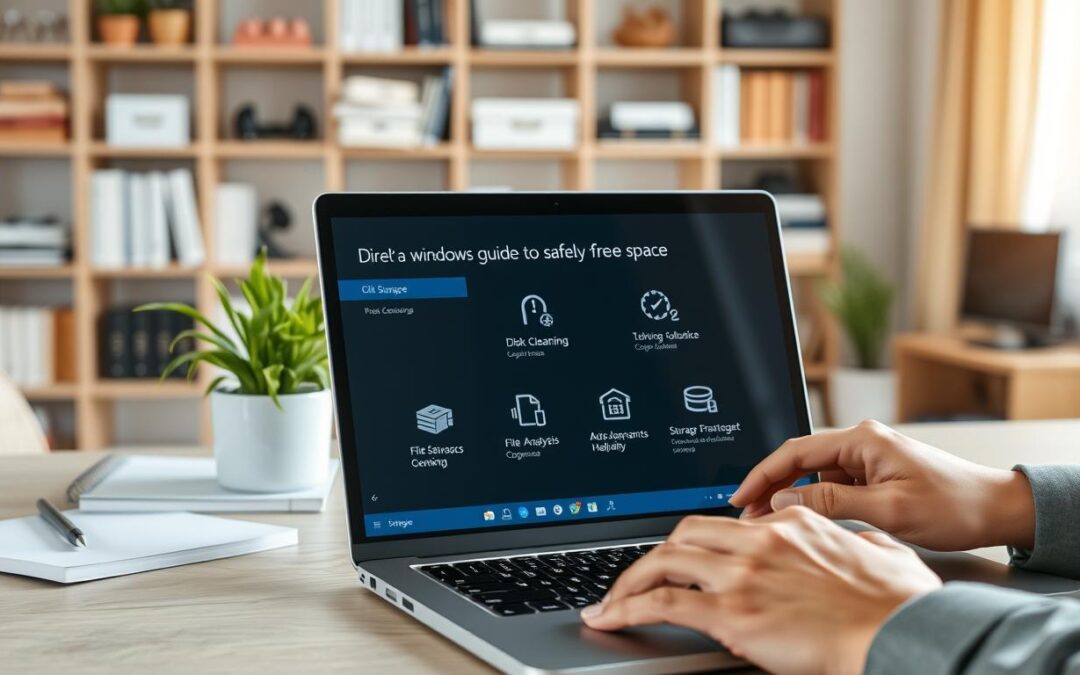
Could a nearly full device be fixed without deleting work you need? A low-capacity alert means the drive is running short on room. Microsoft notes that low disk space may slow a PC or block Windows updates.
That can affect performance at a bad time, but removing items at random is not the only answer. This guide walks you through Windows 10 and Windows 11 checks first. Then, you’ll learn careful ways to create free space and protect important work.
You’ll see how to review storage space, spot temporary items, and decide what you can remove. A few simple checks can show what uses space before you make changes. Check first, then remove only what you understand.
RentLappy works to make technology more accessible, affordable, and flexible for startups, corporates, freelancers, and educational institutions across India. It rents laptops, desktops, servers, and networking equipment for business needs.
Its founders bring more than 12 years of IT and electronics experience. RentLappy serves 5,000+ customers in metro cities and tier-2 and tier-3 towns across India.
Key Takeaways
- A low-capacity warning can affect speed and Windows updates.
- Check usage before removing anything.
- Temporary items may offer a safe way to reclaim room.
- Use care when reviewing personal and system content.
- RentLappy serves businesses and institutions across India.
Why a laptop storage full warning can affect performance and updates
A low amount of disk space can slow a computer or stop Windows updates from installing. This warning can affect daily work, not just housekeeping. Check the amount available before you choose a cleanup step.

Check available disk space in Windows
In Windows 11, open File Explorer and select This PC. Under Devices and drives, check the available disk space for each drive.
Windows 10 uses the same route: File Explorer, then This PC. Screen labels can vary by version, so look for Devices and drives.
Understand what is using your storage capacity
Open Settings and choose System, then Storage. This view shows drive capacity and groups content by type, such as apps and files. It can also list temporary files and software, helping you see where space goes.
Note the amount available before cleanup. After each change, check again to see how much space you gained. This simple step helps you judge results without removing items at random.
Find large files before deciding what to clean up
Before you remove anything, find which folders use the most room. Windows identifies Videos, Music, Pictures, and Downloads as common places for large items. Documents may also contain old exports or extra copies.

Sort Downloads, Videos, Pictures, and Documents by size
In File Explorer, open a folder and choose Details view. Select the Size heading to sort the list, with the largest files at the top. If Size does not appear, right-click a column heading and add it.
Check what each item is for before you remove it. A long video, photo set, or work document may matter, even if it uses a lot of disk space. Look for duplicates and forgotten downloads, then decide which files you want to keep.
- Review each folder on your device before making changes.
- Check personal files, such as photos and documents, with care.
- Consider whether a USB drive could hold items you still need.
Start with the largest items, not entire folders. This helps you make informed choices and find a safe way to free space.
Clear temporary files and system clutter safely
Built-in Windows tools can clear clutter without touching work you choose to keep. Review each option before cleanup to protect important content and improve performance.
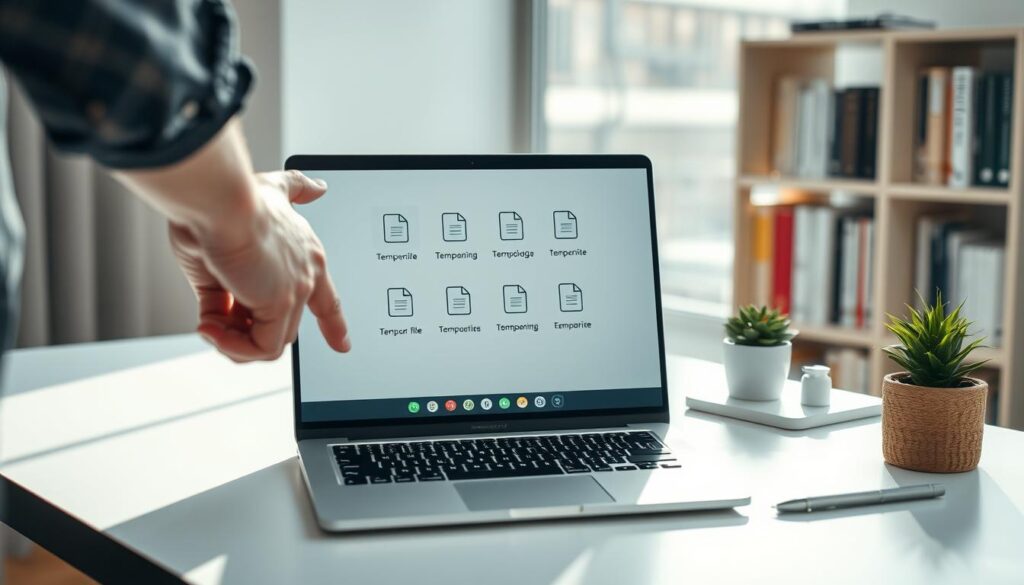
Choose a Windows 11 cleanup option
In Settings, open System, then Storage. Storage Sense can remove unnecessary temporary files and Recycle Bin contents on a schedule. Check its settings first so it removes only items you no longer need.
Cleanup recommendations shows estimated savings for Temporary files, Large or unused files, Files synced to the cloud, and Unused apps. Review each suggestion before you act.
Run Disk Cleanup in Windows 10
Search for Disk Cleanup, select a drive, and inspect each file-type box. Choose Clean up system files only when you understand what those items contain. Removing Windows.old within 10 days of an upgrade also removes the option to return to your previous version.
Review items before clearing them
Check selections, then empty the Recycle Bin to reclaim space. If a warning returns because the Temp folder is full, run wsreset.exe to reset the Microsoft Store cache. Its blank Command Prompt window usually closes after about 10 seconds.
| Tool | Best for | Check before cleanup |
|---|---|---|
| Storage Sense | Scheduled Windows 11 cleanup | Settings for temporary files and Recycle Bin |
| Cleanup recommendations | Reviewing estimated savings | Each suggested item or app |
| Disk Cleanup | Windows 10 drive cleanup | File types and system files |
Keep personal files while removing items you no longer need
Your drive can regain breathing room without putting treasured memories at risk. A low-space warning does not mean you must delete personal files. Review large items first, then keep the files you want and remove only what you no longer need.
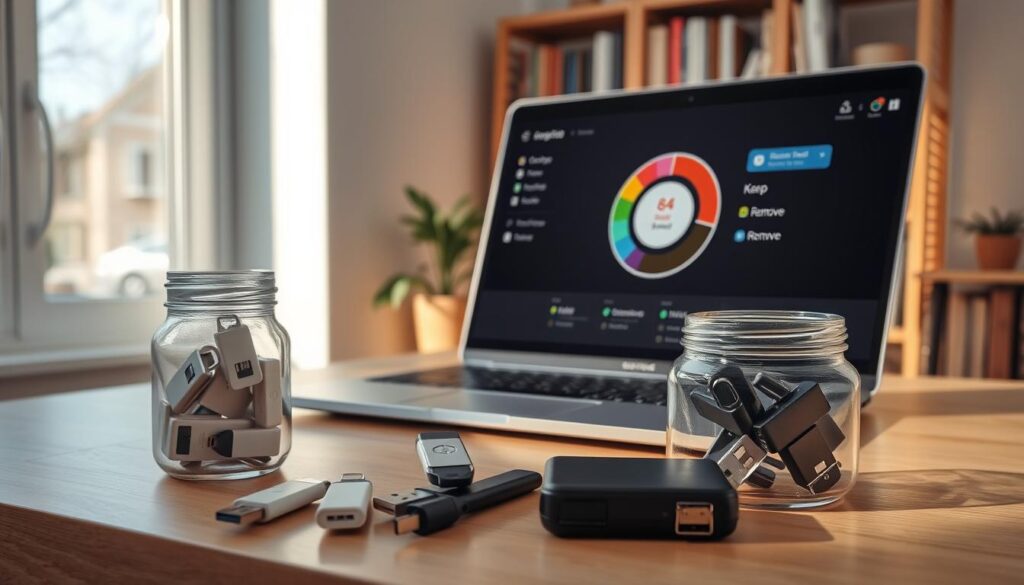
Photos, videos, music, and documents can take up much of a hard drive. Before you delete files, check that you still have a copy of anything important. A backup can protect personal files if you remove the wrong item from your device or computer.
Some files may be used less often, but still matter. Consider keeping those on another drive rather than removing them. By contrast, old downloads or duplicate items may no longer serve a purpose. Review each file and folder with care; don’t judge by size alone.
Deleted items stay in the Recycle Bin until you clear them. Check its contents before choosing Empty Recycle Bin; that action removes those items from the device and frees space. Temporary files and personal items are not the same, so review each cleanup choice in Windows settings before you confirm it.
Move files to external storage or the cloud
Rarely used media can stay within reach without taking up room on your computer. An external drive or OneDrive can help you keep important content while making more disk space available.
Transfer large files to a USB drive or SD card
Connect a USB drive or SD card, then open File Explorer. Find large videos, photos, or documents you want to keep. Select them and choose Move to, or cut and paste them into a folder on the device.
These files remain available when the external device is connected, while freeing space on your computer’s internal hard drive. Before removing local copies, confirm the transfer worked and that key files open.
“Keep a second copy of important files before you remove the original.”
Use OneDrive Files On-Demand for cloud access
Files On-Demand lets Windows show cloud content in File Explorer while keeping smaller placeholders on the hard drive. The full-size file downloads when you open it. Check OneDrive settings and confirm files are backed up and accessible before clearing local copies.
| Option | Best for | Keep in mind |
|---|---|---|
| USB drive or SD card | Large files used less often | Connect the device to access them |
| OneDrive Files On-Demand | Cloud access through File Explorer | Internet access may be needed to download files |
Prevent your laptop storage from filling up again
A simple routine can keep your device ready for work and updates. Choose a better save location, review unused software, and check where new content goes. These steps can reduce repeat cleanup and support steady performance.
Change save locations and remove unused apps
In Windows 11, open Settings > System > Storage > Advanced storage settings > Where new content is saved. Pick a drive with more available capacity for each content type instead of relying on the default.
In Windows 10, go to Settings > System > Storage > Change where new content is saved. Choose a suitable drive for each type, such as documents or apps.
Review large folders, downloads, and the Recycle Bin often. Uninstall apps you no longer need, but check each item before you delete files. If a USB drive or external storage suits rarely used content, confirm the transfer before removing local copies.
If disk space keeps disappearing without a clear reason, malware may be involved. Use Windows Security to scan your device. A regular check can help protect files and preserve free space.
Conclusion
A safer cleanup follows a clear order: check available disk space, find large files, review Windows cleanup suggestions, then remove only items you no longer need. Move important files to an external drive or cloud service when useful. Empty the Recycle Bin only after you confirm its contents are safe to remove.
Choose a practical save location and review unused apps now and then. These habits can prevent another low-space warning, protect files, preserve storage space, and support steady performance on your device.
RentLappy is an India-based technology rental partner for startups, corporate events, employee training, and remote work. It serves 5,000+ customers and provides laptops, desktops, servers, and networking equipment.
Visit RentLappy at D-97, Okhla Phase 1, Okhla Industrial Estate, New Delhi – 110020. Call +91-60003 70013 or email sales@rentlappy.com. Find flexible equipment for your next project.