

Could a polished shell hide a weak battery or false specs? A quick look may miss costly faults, so a careful review matters.
Searching for “how to check used laptop before buying”? This guide helps shoppers in India judge authenticity, condition, and value before handing over money. A new model can cost two or three times as much as a secondhand one, but a lower price does not always mean a smart deal.
Look beyond the case. The screen, display, keyboard, battery, ports, and other parts all deserve attention. We’ll also cover ways to compare the device’s specs with daily needs, from study and work to entertainment. The right fit depends on the tasks, not just the price or brand.
A patient inspection can reveal poor quality and help you weigh savings against risk. With a few simple steps, you can make a more confident choice among India’s many pre-owned laptops.
Key Takeaways
- Review authenticity, condition, and value.
- Inspect the screen, keyboard, battery, and ports.
- Match specs with your everyday needs.
- Compare savings with possible repair costs.
- Judge the machine beyond its outer case.
How to check used laptop before buying: start with your needs
Start with your daily tasks, not a brand name. Study, office work, business software, and gaming can call for different graphics and processing power. A clear plan helps you avoid paying for features you will rarely use.
Match specifications with your everyday, business, or gaming tasks
For everyday use, an Intel i5 or Ryzen 5 processor from five to seven years ago may still offer solid performance. Aim for at least 8 GB of RAM for general work. Gaming or heavy multitasking works better with 16 GB or more. An SSD with 256 GB capacity can improve speed and make common tasks feel more responsive than an HDD.
Set a budget and account for possible repairs or upgrades
Set a budget that leaves room for repairs. A replacement charger or extra memory can raise the total cost. Compare the asking price with the machine’s condition, storage, and upgrade options. Newer models may suit demanding tasks better, while an older laptop can fit simple needs. Compare several laptops in your price range, and choose the one that meets your needs without stretching your funds.
Verify the seller, ownership, and purchase records
A clear ownership trail can lower risk and protect your money. Speak with the seller about the device’s history and any past faults.
Ask about its history and past issues
Ask why the owner is selling, how long the device has been in their possession, and whether recurring issues or repair visits have occurred. For a used laptop, request a receipt or other ownership record. Match the serial number on the document with the device.
Review reputation, returns, and warranty terms
Read customer ratings and reviews, then study the return policy. Certified refurbished options on online portals may include a warranty. Ask which parts and repairs that coverage includes, and note any limits in writing.
- Arrange a short trial and test the device in person.
- Compare its condition with the offered price.
- Ask for clear records if the ownership history seems uncertain.
A brief trial can help you judge quality before you hand over payment. When buying used, take your time and leave if answers feel vague. Clear records and fair terms make for a safer deal.
Inspect the laptop’s body, hinges, and physical condition
A close look at the frame can reveal wear that a quick glance misses. Set the device in bright light and scan each side, seam, and corner.
Look for cracks, dents, loose screws, and signs of liquid damage
Look over the casing for dents, loose screws, and liquid marks. Cracks near a hinge, loose fasteners, or damaged ports may signal heavy use or hidden hardware damage. Pay close attention to the seams; cracks that spread under pressure deserve extra care.
Check the hinges, charger, and casing for wear or damage
Open and close the screen with a light hand. Stiff, loose, or noisy hinges can point to wear. Inspect the charger and plug; the connection should fit firmly, without wobbling. Business laptops often have stronger frames than some plastic models, but each unit still needs an in-person review.
- Look for wear that could affect key components.
- Check the keyboard for missing keys or physical damage.
- Consider the condition of the casing, not just its finish.
- Compare several laptops, since frame strength and wear can vary.
A sound exterior helps protect the device, but it cannot prove every part works. Treat visible damage as a reason for a closer review.
Test the screen, keyboard, and touchpad
Small input faults can slow daily work or study. When you check laptop condition, use a few simple checks and take your time.

Spot flaws across the display and screen
Open white, black, red, green, and blue backgrounds. Dead pixels, colored spots, discoloration, or flicker stand out on solid colors. Scan the screen, then adjust brightness and view the display from several angles. Uneven light, backlight bleed, or lines may signal damage. A clear screen supports comfortable daily use.
Try every key and touchpad gesture
Type every key and confirm each response. Keyboard Tester can flag missed or sticking keys. Move the cursor with your hand, try scrolling and pinch gestures, then press both touchpad buttons. Smooth movement and steady clicks point to better condition.
- Watch for flicker as brightness changes.
- Confirm the keyboard responds across all keys.
- Try supported multi-finger gestures and both clicks.
These quick checks reveal input or image issues while you can still discuss them with the seller.
Check the ports, webcam, microphone, speakers, and connectivity
Small connection faults can disrupt classes, meetings, and daily work. Inspect the laptop’s ports and wireless links as carefully as its screen. These components affect comfort and reliability.
Try USB, HDMI, headphone, and charging ports
Test each port with a matching accessory. Try a flash drive, wired headphones, and an external display. Confirm the ports respond and hold each plug firmly. Connect the charger and make sure the device begins to charge.
Confirm the camera, audio, Wi-Fi, and Bluetooth
Open the Windows Camera app. Look for a clear picture with no freezing or error messages. For the microphone, open Settings > System > Sound, select Input, and listen to a short recording for clear audio.
Select the built-in speakers under Output and play the test sound. Listen for crackling, distortion, or very low volume. Join a Wi-Fi network and pair a Bluetooth accessory, if available. No extra software should be needed for these checks.
“Reliable connections make everyday tasks feel easier.”
Try these steps in person, since a quick visual review may miss a fault.
Assess battery health, charging, and expected battery life
Battery condition can affect daily use as much as speed or storage. Ask the seller about battery life away from a charger, then try a short unplugged test yourself. Compare your result with the seller’s estimate.
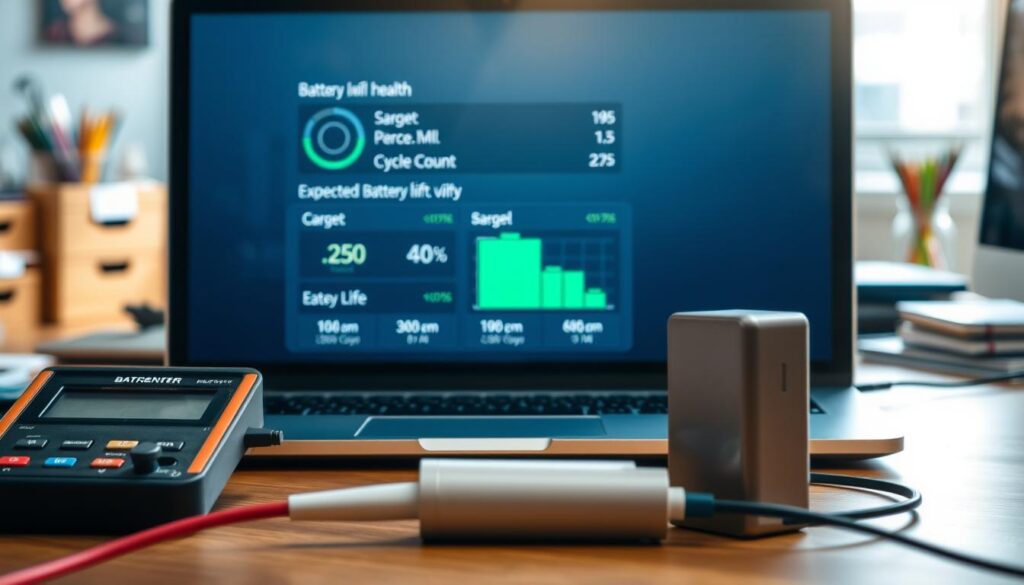
Review a Windows battery report and compare capacity
For a closer look at battery health, open Command Prompt as administrator and run powercfg/batteryreport. The report lists design capacity and full-charge capacity. A wide gap between them can signal wear, though real-world performance matters too.
Battery deterioration often becomes noticeable after two or three years. Use the report and your test results when weighing the asking price. A battery that lasts less than two hours may need replacing, so include that expense in the total cost.
Test the charger and account for replacement costs
Connect the charger and watch for a steady charge. Check that the plug fits firmly and the charging connection does not cut out. Do not rely on a capacity figure alone; consistent charging and practical battery life both matter. If several laptops fit your needs, compare their battery health and likely replacement costs.
Check processor, RAM, storage, graphics, and overall performance
Strong specs on paper do not always mean smooth performance. Match each part with your daily tasks, then test the system in person. A five-to-seven-year-old Intel Core i5 or AMD Ryzen 5 may still offer useful speed for everyday work. Compare the processor generation and model with the apps you plan to run.
Confirm processor generation and speed for your needs
Open Windows system details and confirm the processor name. A quick app test can reveal lag that a spec sheet may not show.
Review RAM capacity and multitasking options
Open several apps at once and watch for delays. Aim for 8 GB RAM for general use; choose 16 GB or more for gaming or heavy multitasking. Ask whether the RAM can be upgraded, since some laptops have fixed hardware.
Verify drive type, health, and graphics hardware
An SSD loads files faster than an HDD. Seek at least 256 GB of SSD storage, and confirm its capacity. CrystalDiskInfo can show drive health and temperature: 30–50 °C is usual, while 70 °C is a high upper limit. Identify integrated or dedicated graphics; dedicated hardware suits demanding creative work and gaming better.
Test real performance, not just listed specs. Compare a few laptops, then weigh speed, storage, and upgrade options against the asking price.
Verify the operating system is genuine, supported, and secure
A familiar desktop can still hide an invalid license or risky software. For laptops in India, confirm the license and update status, rather than judging by appearance alone. A genuine operating system helps protect personal files and supports ongoing security updates.

Check Windows activation and confirm update access
Open Settings and review the activation status. In Windows, look for a clear message that the license is active. Ask the seller to show a receipt or license record when available. A working desktop by itself does not prove valid activation.
Also confirm the operating version remains within its support period. Unsupported or unlicensed software may miss important security fixes, leaving the system more exposed.
Review installed programs and plan a clean setup
Scan the software list for unfamiliar apps, odd toolbars, or programs with unclear names. These may have come from the seller or a past owner. Do not trust an app just because it opens.
- Confirm Windows activation and update access.
- Ask about the license and review unfamiliar programs.
- Consider a clean installation if the software history is unclear.
A fresh operating system can remove unwanted apps and give the laptop a trusted start. Genuine, supported software makes future updates and maintenance easier.
Test cooling, temperature, fan noise, and system stability
Heat strain may not appear during startup. Give the laptop time to warm up, then watch for signs of cooling trouble during regular tasks.
Watch for heat or shutdowns during a longer session
Run the machine for at least 15 minutes. Watch for a hot base, sudden shutdowns, or unexpected slowdowns. These clues may signal cooling problems, especially in a warm room.
Listen for fan noise during demanding tasks
Listen near the fan exhaust during a workload. A loud whir or repeated surges may point to cooling strain. Open several apps and note whether performance stays steady, without freezes or restarts.
Where compatible, NZXT CAM can display CPU and GPU temperatures during a workload. It can also adjust clock speeds and fan settings. Treat unusual heat as a health concern, and include a cooling diagnosis in your decision. Keep the device on a hard surface, not your hand, so vents stay clear.
A brief test can miss faults; a 15-minute run gives a clearer view of daily performance.
Review repair history, service records, and component issues
Repair records can reveal patterns that a quick inspection may miss. Ask the seller about past work and request invoices or service notes, if available.
Ask about major repairs and repeat faults
Ask whether the motherboard, battery, screen, or storage drive needed repair or replacement. Find out why the work took place and whether the same fault returned. Repeated repairs may affect long-term reliability.
Run simple tests for memory and drive health
Use trusted diagnostic software to assess hardware condition. A short test can uncover problems that do not show during normal use.
- Enter
mdschedin the Run dialog, then choose the restart option for a memory scan. - If results do not appear afterward, search Event Viewer under Windows Logs > System for “MemoryDiagnostic.”
- Open CrystalDiskInfo for storage drive health and temperature details.
- Compare the test results with service records and reported battery health.
Clear records and steady test results offer a stronger picture of the device’s condition.
Compare the used laptop’s price with its condition and market value
Treat the asking figure as a starting point, not a verdict. Prices for the same model can vary across Indian marketplaces due to age, configuration, wear, and seller terms.
Check laptop listings on several sites, matching the model number, processor, memory, and storage. A machine at least five years old should sit well below the cost of a new one. Since a new model may cost two or three times as much as a secondhand unit, the savings can still be worthwhile when repair needs stay modest.
Compare listings and estimate added expenses
List likely expenses for a replacement battery or charger, an SSD, or a RAM upgrade. Add these amounts to the seller’s figure, then compare the total with similar listings. Factor in known repairs and the machine’s condition, not just its age.
- Match the exact model and configuration across multiple sites.
- Set aside funds for parts or upgrades you may need.
- Choose a fair deal, not simply the lowest price.
“Real savings come from value, not a low figure alone.”
Keep your budget in hand, and walk away if the final price no longer reflects the market value.
Decide whether buying used or renting better fits your needs
Your plans for the next few years can shape the right choice. A used laptop may suit someone who needs it for a long time and has room in their budget for repairs or upgrades. Since a new model can cost two or three times as much as a secondhand one, compare its condition and price with the savings.
Renting may fit a short event, training program, or temporary business project. RentLappy provides equipment for startups, businesses, events, training, and remote work. Its flexible options aim to make technology more accessible and affordable for corporates, freelancers, and educational institutions.
- Choose a purchase when long-term use justifies the upfront cost.
- Rent for a defined time when a permanent purchase is not practical.
- Compare rental terms with total ownership costs, including battery or processor upgrades.
- Match the option with your needs, whether for gaming, study, or business.
Compare rental laptops and purchase savings against your expected use and the likely service life. A low price matters less if repairs strain your budget.
“Choose the option that fits your needs, not just the price.”
Explore flexible IT equipment rentals from RentLappy
Short projects and growing teams may need reliable equipment without a large upfront expense. RentLappy offers flexible rental plans for startups, corporates, freelancers, and educational institutions across India.
Experience backed by thousands of customers
Founded by IT and electronics professionals, RentLappy brings more than 12 years of industry experience. The company serves over 5,000 customers in metro cities and tier-2 and tier-3 towns. Its focus is accessible, affordable technology with quality support.
Equipment for changing needs
RentLappy provides laptops, desktops, servers, and networking equipment for business needs. Rental plans support corporate events, employee training, startups, and remote work. Teams can select laptops that fit their tasks, project length, and budget, rather than commit to a large purchase.
Contact the rental team
Ask about available plans and equipment for your organization. RentLappy is located at D-97, Okhla Phase 1, Okhla Industrial Estate, New Delhi – 110020. Call +91-60003 70013 or email sales@rentlappy.com. A flexible plan can help your team stay ready as needs change.
| Equipment | Suitable for | Rental use |
|---|---|---|
| Laptops and desktops | Startups and remote teams | Daily work and training |
| Servers | Growing organizations | Project infrastructure |
| Networking equipment | Event and office teams | Reliable connections |
Conclusion
Your final choice should rest on evidence, not a polished listing. Meet the seller, review ownership details, inspect the casing, ports, and operating system, and confirm key parts work.
Test the screen, keys, storage, speed, and battery in person. Photos and promises can leave out faults that affect daily use. Note any repair or replacement costs, then compare the full amount with similar options in India.
Also weigh ownership against renting. A long-term need may favor a purchase, while a short project may call for a flexible plan.
Take your time, set a firm budget, and walk away if answers or test results raise concern. A sound decision can protect your money and give you a dependable laptop—or point you toward a better fit.