
Could a computer that still works well become a security risk? Microsoft ended standard support for this operating system on October 14, 2025. That date matters because regular security updates no longer arrive through the standard service.
The system first became generally available on July 29, 2015. Its decade-long life gave homes, schools, and businesses time to rely on familiar tools. Now, a clear plan can help users make the transition with less stress.
This beginner-friendly guide explains the security changes and helps you check your PC’s eligibility. You’ll also compare moving to Windows 11, considering Extended Security Updates (ESU), and choosing a rental device. The right choice depends on your needs, budget, and timing.
RentLappy works to make technology more accessible, affordable, and flexible across India. Startups, corporates, freelancers, and educational institutions can explore device options that fit their work. Whether you plan an upgrade or need a temporary device, this guide will help you take the next step with confidence.
Key Takeaways
- Microsoft’s standard service for this operating system concluded on October 14, 2025.
- Check your PC’s eligibility before choosing a newer operating system.
- ESU may offer eligible users additional security updates.
- Compare upgrade costs with the needs of your work or study.
- RentLappy offers flexible device options for individuals and organizations in India.
Windows 10 end of support: What It Means Now
Microsoft ended routine service on October 14, 2025. Standard users no longer receive monthly security updates, feature updates, or technical support. The installed operating system can still start and run, so there is no need to panic. But owners should plan their next steps with care.
Routine protection and help have stopped
Version 22H2 was the final general release. Some special servicing editions follow separate schedules, so their coverage may differ. For most home and office users, though, new software flaws may go unfixed. That can leave a device more exposed over time.
Your PC still works, but protection can fade
The operating system does not suddenly shut down. You can still open files and use installed apps. Yet without regular security updates, built-in security features may not address newly found risks. An update to a safer system, or another protection plan, can help reduce that gap.
Keep using your PC only with a clear plan for data safety and a future transition.
When Windows 10 Reached Its End-of-Support Date
A decade-long chapter for Microsoft’s familiar desktop platform closed on October 14, 2025.
Windows 10 reached its standard end-of-support date on October 14, 2025, according to Microsoft lifecycle information. That milestone came about ten years after general availability began on July 29, 2015.
For standard editions, routine security updates and technical assistance from Microsoft stopped on that date. Version 22H2 remained the final general release; no later mainstream edition followed.
Separate servicing programs and Extended Security Updates (ESU) may follow different rules, eligibility checks, and coverage periods. Check your edition and plan before making a decision.
For households, schools, and companies in India, this timeline helps explain why a working computer could still need a careful upgrade plan. The date did not switch off devices; it changed Microsoft’s routine service commitment.
“A service milestone changes the update schedule, not whether your computer turns on.”
| Milestone | Date or version | What it means |
|---|---|---|
| General availability | July 29, 2015 | The platform became widely available. |
| Standard service date | October 14, 2025 | Routine updates stopped for standard editions. |
| Final general release | Version 22H2 | No later mainstream release followed. |
Why Using an Unsupported Operating System Poses Security Risks
A familiar PC can still feel dependable, yet its protection may weaken as software ages. Treat Windows EOL as a planning signal, not a reason to panic.
Unpatched vulnerabilities can expose files and accounts
Since October 14, 2025, standard users without eligible coverage have not received routine monthly security updates. Newly found flaws may remain open, giving malware, viruses, or attackers a path to files and account credentials. Microsoft no longer offers standard technical support for this system.
Use unique passwords, turn on multifactor sign-in, and keep browsers and apps current. These steps can lower risk, but they cannot replace operating system fixes.
Outdated software may create reliability and compatibility issues
Security is not the only concern. Older drivers or apps may clash with new devices or current services. Some software may also become less reliable as providers change their tools. A covered operating system can help maintain smoother use and timely security updates.
For homes, classrooms, and small businesses across India, review key files and connected devices to set priorities. Then plan a move to a covered option that fits your needs.
Check Whether Your PC Can Upgrade to Windows 11
A quick compatibility review can help you avoid wasted time and surprise costs. Eligibility depends on the computer’s hardware, not just its age or appearance.
Compare key hardware with the minimum requirements
Check processor details, memory, storage, and TPM 2.0 status against Microsoft’s requirements. Some older setups that ran Windows 10 may not meet these requirements. This matters because an eligible device can receive current updates and stronger security.
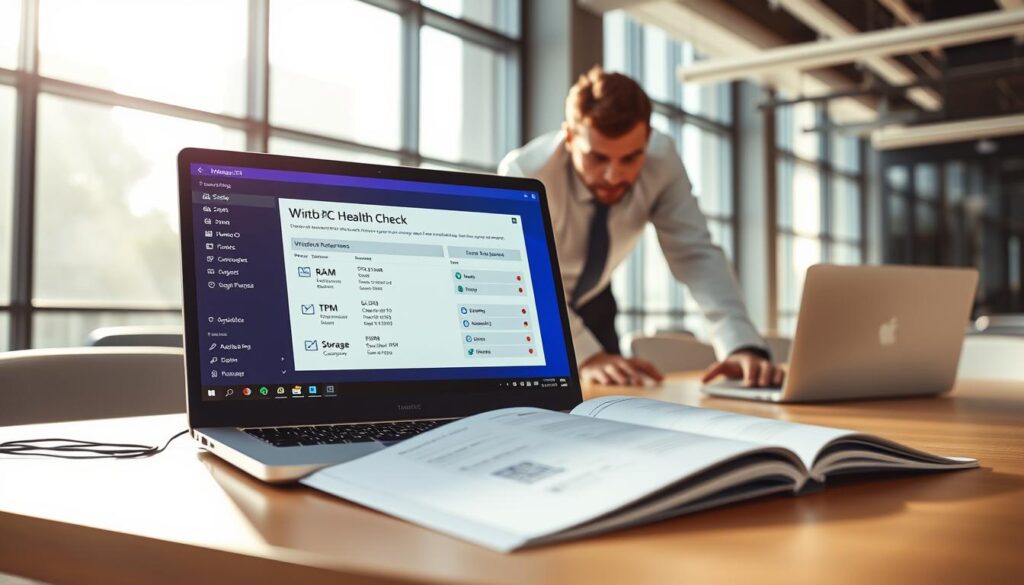
Check compatibility before you install
Microsoft’s PC Health Check tool can show whether your device qualifies. Run the health check, review any flagged hardware limits, and confirm your result before downloading an upgrade. Don’t rely on appearance alone.
Also check free storage, essential apps, and connected devices such as printers. These needs can affect whether moving your system is practical, even when it meets the requirements. A little planning helps make upgrading Windows easier.
- Review the health check result and hardware details.
- Confirm storage, app, and peripheral needs.
- Plan the upgrade only after checking compatibility and update options.
When a PC fails the requirements, compare other options before making a change.
Upgrade a Compatible PC to Windows 11
A compatible PC can make the move easier, but a little preparation helps protect your files and saves time. Back up key items first, then check the update offer before you begin.
Back up files and settings before starting the upgrade
Use Windows Backup to save files, settings, apps, and login details for transfer. Keep a second copy of important documents on an external drive or trusted cloud service. A current backup can help you recover from an unexpected installation issue.
On an eligible PC, open Start > Settings > Update & Security > Windows Update. Check whether the upgrade appears. Install available updates, and confirm you have enough free storage before you download and install the new system.
“A backup gives you a safer starting point for the transition.”
You’ll need to plan for essential apps, printers, other devices, and sign-in details. Check that key software works with the new hardware and system requirements. Set aside enough time to follow each prompt without rushing.
After the upgrade, check your files, internet connection, and core apps. This final review can help catch small problems early and restore your usual routine.
Choose a New Device if Your PC Is Not Compatible
If your older PC cannot meet the minimum requirements, replacing it may be a practical choice. Microsoft recommends considering a new Windows 11 PC rather than relying on an unsupported installation workaround.
A device built for this system offers supported hardware and a current platform. It can also give you a chance to improve speed for demanding apps and everyday tasks. Choose a model that fits your work, study, and budget.
Compare devices before you buy. Check memory, storage, ports, battery life, and essential software. These details matter for home use, office tasks, and study. Also consider whether your usual accessories will connect to the new hardware.
Plan the upgrade before putting the replacement into regular use. Back up key files, note your settings, and decide how you will move them from old PCs. This can make the change smoother and help you resume work with less delay.
| What to compare | Why it matters | What to check |
|---|---|---|
| Memory and storage | Helps apps run well and leaves room for files. | Match capacity to your daily tasks. |
| Ports and battery | Supports accessories and mobile use. | Check connections and expected battery needs. |
| Apps and file transfer | Keeps work ready on the new device. | Confirm app access, backups, and transfer steps. |
Understand Extended Security Updates for Windows 10
Eligible users gained an added security option after routine Microsoft service stopped on October 14, 2025. This plan can reduce risk while households and organizations prepare for a longer-term change.
Consumer coverage runs through October 12, 2027
Consumer extended security updates remain available through October 12, 2027. They provide critical security fixes, but they do not restore regular feature releases. Treat this coverage as a temporary bridge, not a permanent answer.
Check business and school terms carefully
For a business or school, eligibility depends on the edition and applicable program. Confirm enrollment steps and exact dates with Microsoft or your licensing contact. Some commercial plans can provide coverage for up to three years, though terms vary. Long-Term Servicing Channel releases follow separate lifecycles.
Use the extra time to plan a transition to supported devices and software. Knowing your dates can help you avoid a rushed move.
| Group | Coverage window | What to check |
|---|---|---|
| Consumers | Through October 12, 2027 | Eligibility and enrollment |
| Businesses and schools | Varies by program; some plans reach three years | Edition, terms, and dates |
| LTSC editions | Separate lifecycle | Edition-specific schedule |
Can You Keep Using Windows 10 After Support Ends?
Yes. Your PC can still run after October 14, 2025. However, standard users no longer receive routine security updates or technical support. The device will not switch off, but its risk level can rise over time.

Ways to reduce risk while planning a transition
Keep browsers and supported apps current. Use reputable security protection, and avoid suspicious links or downloads. These steps lower risk, but they cannot replace fixes for newly found flaws. Keep important files backed up, too.
Check whether your PC qualifies for extended security updates. Consumer coverage runs through October 12, 2027. Review eligibility and dates before relying on this program. It offers a temporary bridge, not a permanent plan.
Set a firm review date to upgrade or replace your PC. In India, use that time to compare costs, app needs, and device options. Do not let a short-term safeguard become a long-term plan. The operating system remains usable, but a clear timeline can help you act before risks grow.
Prepare Your Files, Apps, and Devices for a Smooth Transition
A little preparation can protect your files and save time. Before upgrading Windows, choose a backup method and check what your next device can run. This helps reduce data loss and keeps daily tasks on track.
Back up key files and settings
Use Windows Backup to save files, settings, apps, and login credentials. OneDrive or an external drive can provide another copy. Test your backup before you begin, so you know the files open correctly.
Review essential apps
Write down the software you rely on. Check that each app works with the new Windows system and its hardware. Keep installers and account details handy. You’ll need them if you reinstall apps or sign in again.
Choose a transfer plan
Decide how to move files to an upgraded device, then verify access to key accounts. Check security settings and available updates after the move. If you need extra support, ask your workplace or school’s IT team. A tested plan makes the transition simpler.
| Task | Suggested method | Check before moving |
|---|---|---|
| Save files and settings | Windows Backup or OneDrive | Confirm files are current |
| Keep a second copy | External storage device | Open sample files |
| Prepare apps | Review app list and installers | Check system compatibility |
What Windows 11 Offers on a Supported PC
For eligible PCs, Windows 11 is Microsoft’s supported successor to Windows 10. This operating system receives current security updates when the edition and device qualify. It also brings new features that can help with daily work, study, and enhanced security.
Snap Assist lets you arrange open windows into screen layouts. It can keep research, notes, and video calls in view at once. Phone Link connects with Android phones and iPhones, subject to availability, so you can view calls, messages, and notifications on your PC.
Smart App Control can help block apps with a poor reputation on compatible systems. This layer adds useful protection, though it does not replace safe browsing habits. Together, these security features and new features can make an upgrade feel more practical.
For professional needs, Windows 11 Pro adds BitLocker, Remote Desktop, and domain join. Home editions do not include these same tools. Check which features match your work before choosing an edition.
“Choose the tools that fit the way you work.”
| Feature | What it helps with | Availability note |
|---|---|---|
| Snap Assist | Arranging apps on screen | Included in Windows 11 |
| Phone Link | Calls, messages, and alerts | Phone and feature availability varies |
| Pro tools | Encryption, remote access, and domain join | Windows 11 Pro edition |
Plan a Windows Upgrade for Your Business or Institution
For teams across India, a planned transition can protect daily work and limit disruption. Begin with an inventory of Windows devices, their owners, business roles, hardware age, and essential apps.
Schedule device checks, migration, and security planning
IT teams can set a date for compatibility checks, backups, pilot updates, staff communication, and a security review. Include the needs of employees and students in each step.
- Confirm which devices can run the needed system and features.
- Check extended security updates eligibility and coverage dates with Microsoft or a licensing contact.
- Review the program terms before relying on extended security coverage. Some business plans offer critical security updates for up to three years, based on eligibility.
- Coordinate supported device purchases with migration and enhanced security plans.
Routine technical support has stopped for standard editions. A clear schedule gives each business time to prepare, protect data, and keep work moving. Check current terms before making decisions.
| Planning step | What to review | Goal |
|---|---|---|
| Inventory | Owners, roles, hardware, and apps | Set migration priorities |
| ESU review | Eligibility, terms, and dates | Confirm available security coverage |
| Transition | Backups, pilot, and procurement | Reduce disruption |
Explore Affordable Laptop Rentals from RentLappy Across India
A system change can bring extra costs, especially when a team needs working computers right away. RentLappy offers flexible rentals across India, helping people find equipment that fits their work, schedule, and budget.
Rent laptops and IT equipment for teams, training, or remote work
RentLappy provides laptops, desktops, servers, and networking equipment. Startups, corporates, freelancers, and educational institutions can rent devices for teams, employee training, corporate events, or remote work. This can help maintain productivity while you plan a Windows upgrade or review security needs.
Choose flexible rentals for startups, corporates, and educational institutions
With more than 12 years’ industry experience, RentLappy has served over 5,000 customers in metro cities and tier-2 and tier-3 towns. Its team can help match equipment to a short project or a longer business need, with planning support for changing requirements.
“The right rental plan can help your team stay ready while you plan what comes next.”
Contact RentLappy to discuss Windows-compatible devices and rental options. Visit D-97, Okhla Phase 1, Okhla Industrial Estate, New Delhi – 110020, call +91-60003 70013, or email sales@rentlappy.com.
Conclusion
The best next step is one that protects your work and fits your budget. Microsoft’s standard support for Windows 10 ended on October 14, 2025, but existing PCs may still run.
Choose a route that fits: upgrade a compatible PC, move to a new Windows 11 device, or check eligibility for Extended Security Updates. Without routine security updates, risk can rise even while the computer still works.
Before changing your operating system, back up files, confirm essential software, and set a realistic schedule. A supported operating system can help keep daily tasks on a safer path. Compare useful features and costs to make sure your new system suits home, study, or business needs.
Individuals and businesses in India can plan ahead rather than rush into a purchase. If you need laptops for work, training, or remote use, RentLappy offers flexible rental options during the transition.