

Could a computer that runs for only an hour need a new power cell, even if it is just a few years old? Short run time can be a clue, but age alone does not tell the whole story. Charge cycles, daily use, and safety signs also matter.
If you’re asking when to replace laptop battery, CPR reports that many units become less reliable after 1–2 years or 300–400 charge cycles. A full charge may last about six hours or longer, depending on the programs in use. A sudden warning, heat, or poor performance can point to a need for a check, though charging gear or a Windows setting may also be at fault.
This guide shares simple ways to check your device, rule out common issues, and decide if repair or replacement makes sense. For flexible technology access across India, RentLappy serves startups, companies, freelancers, and schools. Founded by IT and electronics professionals with 12+ years of experience, it now supports 5,000+ customers in metro and tier-2 and tier-3 towns.
Key Takeaways
- Age and charge cycles offer useful clues about power health.
- Many units show issues after 1–2 years or 300–400 cycles.
- Programs in use can affect how long a full charge lasts.
- Check the charger and system settings before seeking service.
- RentLappy offers flexible tech rentals across India.
When to Replace Laptop Battery: Timing and Battery Life
Age offers a useful clue, but it cannot set an exact deadline. Rechargeable cells lose capacity over time, and each full charge cycle adds wear. Brand, design, and daily habits all shape how long a device keeps its original runtime.
“Runtime matters more than age alone.”
How age and charge cycles affect capacity
CPR reports that problems often start after 1–2 years or 300–400 charge cycles. That is a guide, not a fixed rule. Other brands may rate their batteries for 300–1,000 cycles, so check the maker’s guidance. If a laptop battery now runs for far less time than it did at first, consider replacing battery capacity through a compatible service option.
Why workload and heat shorten runtime
Workload also changes daily power needs. Asurion estimates that many modern laptops run for about 3–10 hours per charge. CPR notes that six hours or longer is possible, based on the programs in use. Video editing, gaming, and many open apps can drain power faster. Heat adds wear, too; repeated exposure to hot conditions may reduce capacity, even in newer devices. Compare real use with earlier performance, not age alone, before making a choice.
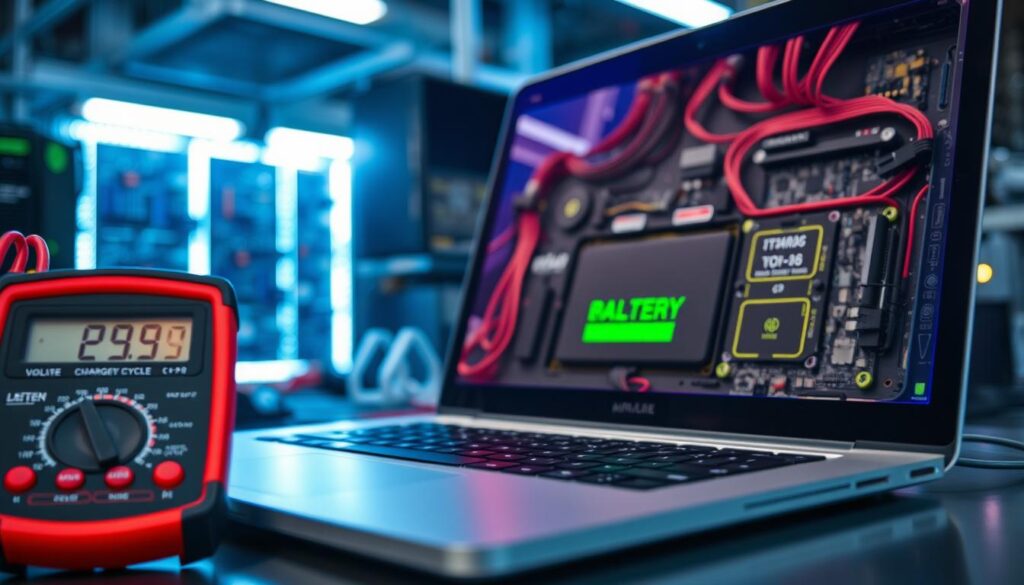
Warning Signs Your Laptop Battery May Need Replacing
A few clear symptoms can help you spot a failing laptop battery before it disrupts work or class. Look for patterns, not one brief glitch; a charger or port can also cause trouble.
Shorter runtime and unreliable power
Asurion says a full charge that lasts only 15–30 minutes may mean the cells have lost useful capacity. Sudden shutdowns, even with charge shown, can put unsaved files at risk. A jumping battery percentage makes remaining life hard to judge.
Slow charging and safety concerns
Slow charging or a laptop that runs only while plugged in can point to worn cells, though a faulty adapter may cause similar issues.
Excess heat has several causes. CPR advises unplugging the device and stopping use if it gets very hot. A swollen pack can leak or catch fire, Asurion warns. Stop use and seek professional repair.
| Symptom | Possible meaning | Next step |
|---|---|---|
| 15–30 minutes of runtime | Cell capacity may be low | Arrange a health check |
| Sudden shutdowns | Power delivery may be unreliable | Save work and seek service |
| Swelling or excess heat | Possible safety hazard | Stop use and get expert help |
Check Battery Health on Windows and Mac
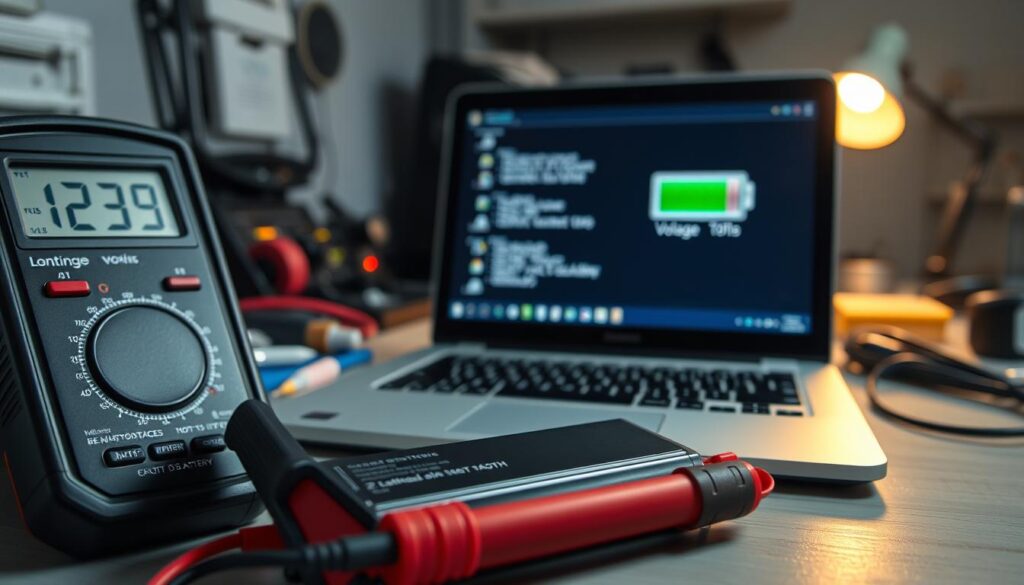
Built-in tools can show how much usable power remains. Check the report or settings, then compare the result with real-world runtime.
Read the capacity report in Windows
On Windows 11, open Command Prompt or Terminal and enter powercfg /batteryreport. Open the file path shown onscreen to view the battery report. Compare Design Capacity with Full Charge Capacity. The first is the original rated amount; the second shows the current limit. A wider gap means less usable capacity than the original specification. This laptop check gives you a clear number for tracking change over time.

Review Mac health details and alerts
On a Mac, open System Settings > Battery and review Battery Health. You can also find details under System Information > Power. Look for the “Service Recommended” alert, maximum capacity below 80%, and cycle counts. These signs can guide your next step.
A low percentage matters most if runtime or reliability has also dropped. In that case, consider replacing the unit through a trusted service provider. Check the readings again later if results seem unusual; one check may not explain every power issue.
Rule Out Charger, Port, and Other Power Issues
Charging trouble does not always point to a worn cell. A damaged cord or loose port can block a steady connection, even if the battery still holds power.
Before you decide whether to replace laptop parts, inspect the cable, adapter, and port for cracks, bent pins, or a loose fit. Connect the charger firmly, then watch the charge level for several minutes.
If the level stays flat, that does not always mean battery failure. A faulty charging circuit can also cause the issue. If a compatible adapter is available, test it safely and stop if the plug or port feels hot or looks damaged.
Persistent power issues need expert testing. A repair professional can check the adapter, port, circuit, and cells. Asurion notes that steady heat and long periods at 100% charge can speed cell wear. Use a cool, ventilated surface, and follow your device’s smart charging settings. The battery may still be healthy, so check accessories before assuming it needs service. Avoid using the laptop on a soft surface that traps heat; this simple habit supports safer daily care.
Choose a Safe Replacement and Know When to Get Professional Service
Before paying for a replacement, check the device’s warranty. If coverage remains active, the manufacturer may supply a replacement pack. Confirm the model number and approved part list before purchase; a similar size does not prove a safe fit.
Check coverage and choose a trusted part
Choose an original or manufacturer-approved part. If you plan to replace a laptop battery, confirm its model and capacity first. Some designs need special tools and careful handling. If the steps seem unclear, ask a qualified repair professional. A trained technician can restore reliable performance and reduce the risk of damage or overheating.
Act fast if the pack swells
A swollen pack is a serious warning. Stop using the computer, unplug it if safe, and do not press or puncture its case. Asurion warns that swelling can lead to fire or leakage. Arrange professional repair; never attempt a home fix.
“Safety comes before runtime.”

For temporary access during repair, RentLappy offers portable computer, desktop, server, and networking equipment rentals across India. Its services support startups, companies, freelancers, schools, events, training, and remote work. The team has 12+ years of IT and electronics experience and serves 5,000+ customers. Visit D-97, Okhla Phase 1, Okhla Industrial Estate, New Delhi – 110020, or call +91-60003 70013 or email sales@rentlappy.com.
Conclusion
A short runtime, slow charging, sudden shutdowns, or swelling are signs worth acting on. Review the laptop battery report on Windows or health settings on Mac, then compare those readings with daily runtime. If you need to replace laptop parts, inspect the charger, cable, and port first; damaged gear can mimic cell wear.
Stop using a swollen battery and contact a repair professional; a damaged pack may leak or catch fire. Safety matters more than extra run time. For temporary access during service, RentLappy provides technology rentals across India, including computers and IT equipment.
Visit D-97, Okhla Phase 1, Okhla Industrial Estate, New Delhi – 110020. Call +91-60003 70013 or email sales@rentlappy.com for rental support during a repair.